Backup
A backup is one encrypted file (with the .chatrixarchive extension) that contains all your chats, photos and files, and conversation avatars, along with the key that unlocks your chat library. You can save it wherever you like, such as iCloud Drive or an external drive.
- Backups are separate from iCloud sync. You can save a backup without turning on iCloud sync.
- If the data in iCloud is deleted or you switch Apple Accounts, you can restore the backup as the same chat library and keep syncing as before.
- Chatrix doesn't back up automatically. After your chats change, you can save a new backup.
- If you just want to move your chat library to another iPhone or iPad, you can also send it directly with device-to-device transfer, without saving it as a file first.
Saving a backup
- Go to "Settings" and, under "Backup", select "Save Backup…".
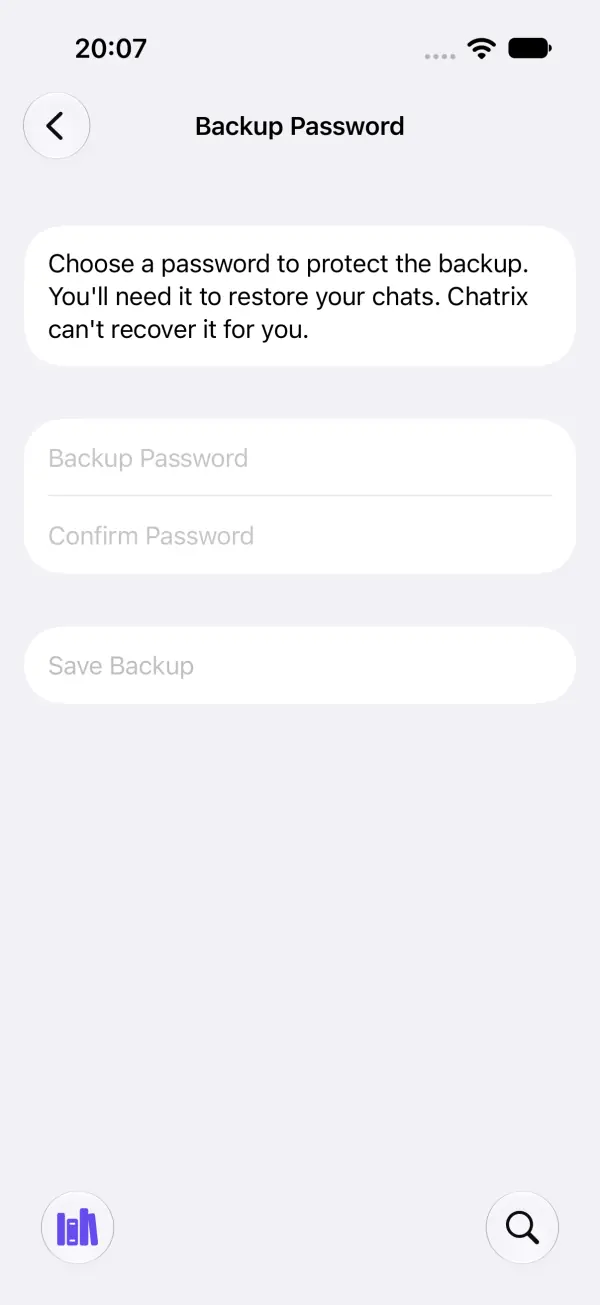
- On the "Backup Password" page, enter the same password in "Backup Password" and "Confirm Password" (at least 8 characters).
- Select "Save Backup". If App Lock is on, you first verify with Face ID, Touch ID, Optic ID or your passcode. When the backup is ready, choose where to save it. The default file name is "Chatrix" followed by today's date. After it's saved, you return to Settings.
The backup is encrypted with your password. If the file has been changed or is incomplete, Chatrix detects it and won't restore it.
Chatrix doesn't keep your backup password and can't recover it for you. Keep the password somewhere safe, like a password manager.
Restoring from a backup
You can restore a backup only on a device that doesn't have any chats yet, such as a new device or after reinstalling Chatrix. A device that has only the sample library works too: the password page shows "The sample library will be removed first.", and once the password and the file check out, Chatrix removes the sample library before restoring.
- Go to "Settings" and, under "Backup", select "Restore from Backup…".
- Choose the backup file.
- On the next page, enter the password you set when you saved the backup in "Backup Password", then select "Restore".
When the restore finishes, the chat library on this device is replaced with the one in the backup. If the password is wrong or the file is damaged, the chat library on this device stays exactly as it was.
Problems found when you choose the file appear in red below the "Backup" section; problems such as a wrong password appear on the password page.
| Message on the screen | Reason and what to do |
|---|---|
| "That password doesn't open this backup." | The password is wrong. Enter it again. |
| "This file isn't a Chatrix backup, or it's damaged." | You chose the wrong file, or the file is incomplete or has been changed. Choose another backup. |
| "This backup needs a newer version of Chatrix." | Update the app first. |
| "This device already has chats." | You can restore a backup only on a device that doesn't have any chats yet (or has only the sample library). |
iCloud sync after restoring
After restoring, iCloud sync is off. When you turn it on in "Settings" › "iCloud Sync":
- If iCloud still has the same chat library, this device connects to it, and your chats aren't duplicated.
- If iCloud has no Chatrix data (for example, the data was deleted or you're using a new Apple Account), save and confirm a new recovery key as on your first device, and your chats are uploaded.
- If iCloud has another chat library, combining isn't available yet, so this device can't sync (see "Both devices already have chats").
Device backups and Time Machine
Besides Chatrix backup files, your device's own backups may also include your chat library:
- iPhone and iPad: When iCloud sync is off, your chat library is backed up along with iCloud Backup or a backup on your computer. Once you turn on iCloud sync and it has synced successfully once, your chat library is no longer included in the device's backups; after you turn off iCloud sync, it's included in them again. Thumbnails aren't included in backups and are made again from the original files when needed.
- Mac: Your chat library is included in Time Machine backups. The index and thumbnails aren't backed up and are made again when needed.
If an iPhone or iPad with iCloud sync turned on is restored from a device backup, Chatrix has an empty chat library and iCloud sync is off. To get your chats back, go to "Settings" › "iCloud Sync", turn on sync, and select "Download Library" on the "Use Your iCloud Library?" page. If iCloud Keychain hasn't synced the key to this device yet, you need to enter your recovery key.
Current limitations
- You can restore a backup only on a device that doesn't have any chats yet; it can't be combined with the chats already on a device.