Getting Started
Chatrix doesn't need an account. The first time you open it, you see a few welcome pages. Then you can import your own chats, transfer your chat library from another device (on iPhone or iPad), or try Chatrix with the sample library first.
Welcome pages
The welcome pages fill the whole screen. Each step opens on a new page, and you can go back to the previous step.
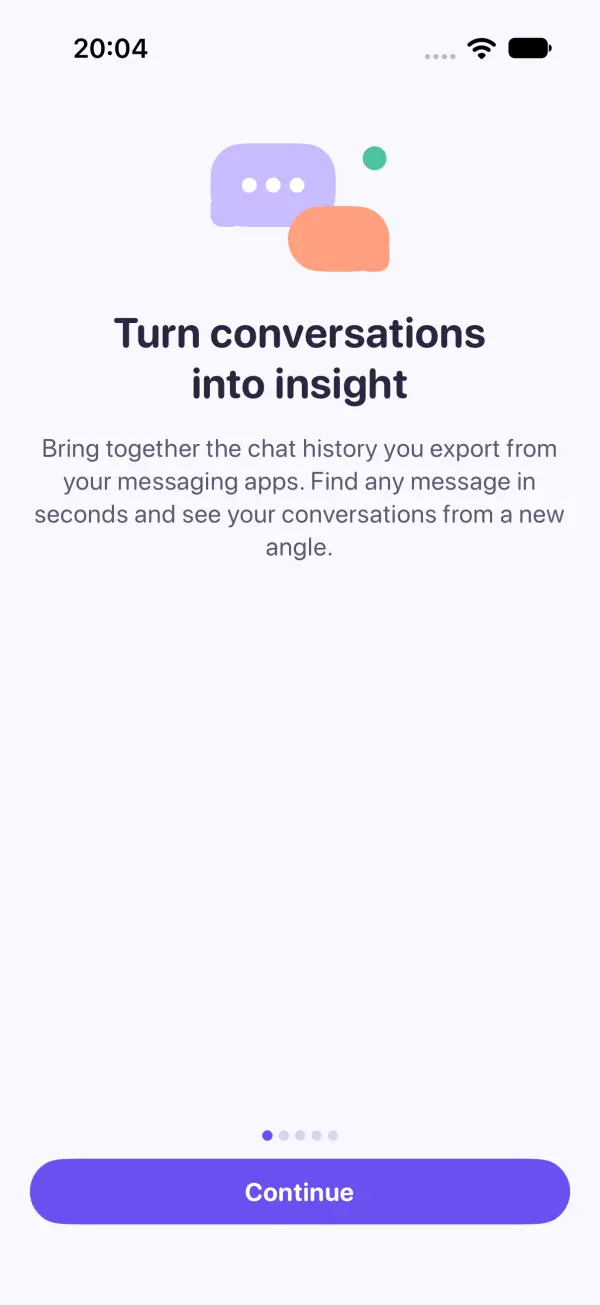
- "Turn conversations into insight": select "Continue".
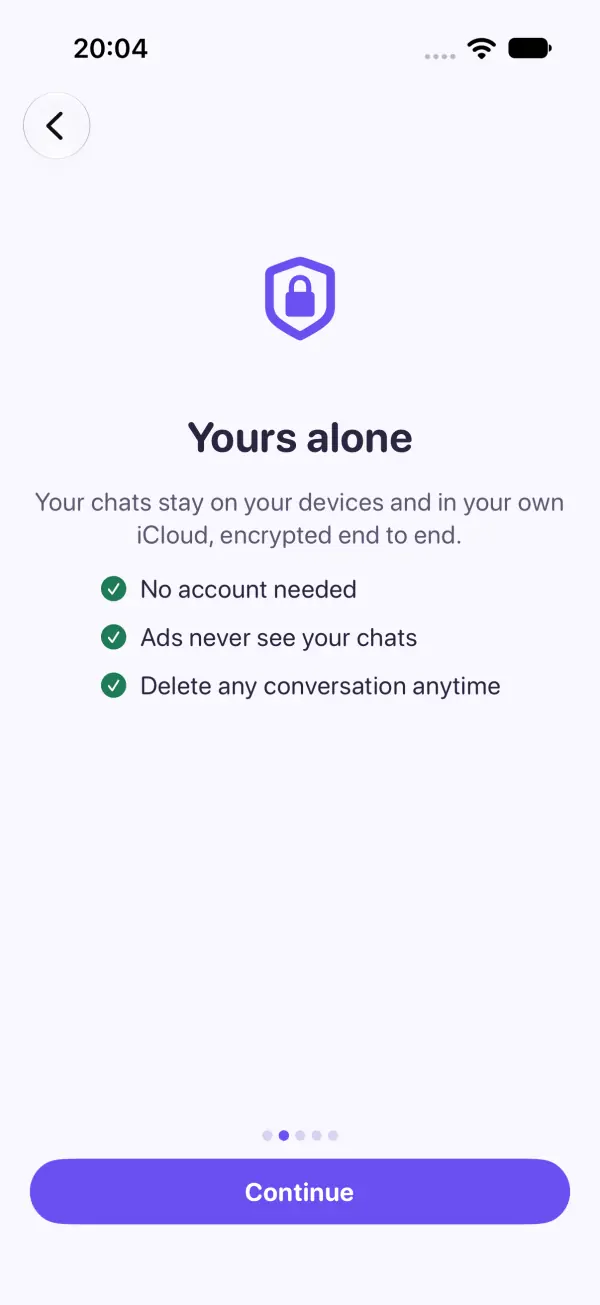
- "Yours alone": explains that your chats are stored only on your devices and in your own iCloud. Select "Continue".
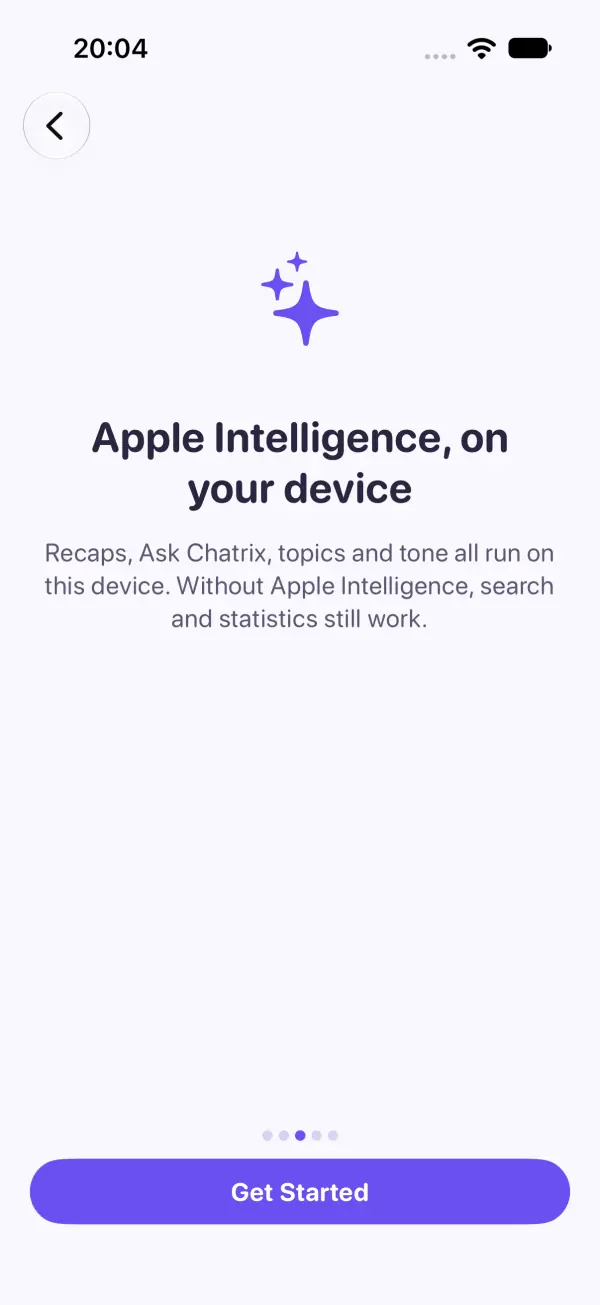
- "Apple Intelligence, on your device": "Recaps, Ask Chatrix, topics and tone all run on this device. Without Apple Intelligence, search and statistics still work." See "Apple Intelligence". Select "Get Started".
- A suggestion to turn on App Lock (appears only if the device has a passcode and App Lock isn't on yet). See "Suggestion to turn on App Lock" below.
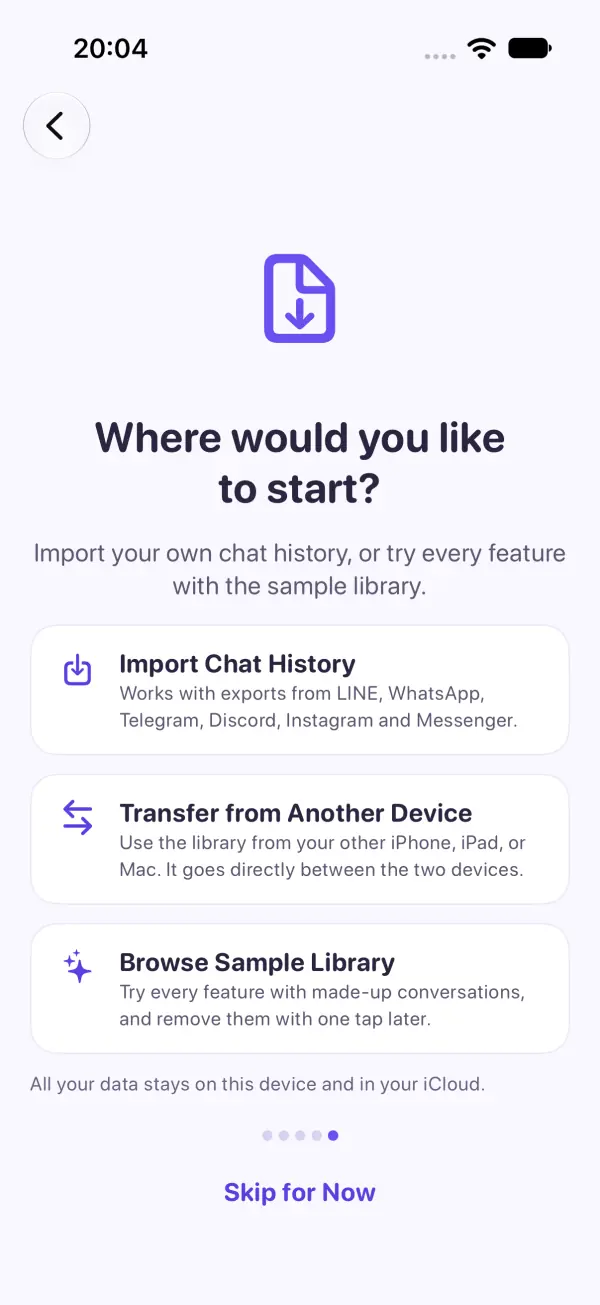
- "Where would you like to start?": choose how to start.
| Option | What happens next |
|---|---|
| "Import Chat History" | "Works with exports from LINE, WhatsApp, Telegram, KakaoTalk, Discord, Instagram, Messenger, X, LinkedIn and Element, plus your ChatGPT, Claude and Gemini conversations." When the welcome pages end, the import page opens. See "Importing Chats". |
| "Transfer from Another Device" (iPhone, iPad) | The "Receive a Library" page opens and shows a pattern. On your other device, go to "Settings" › "Device-to-Device Transfer" › "Send This Library" and scan the pattern to copy that device's chat library over. See "Receiving on the new device". When the transfer is complete, "Library" opens. |
| "Browse Sample Library" | The sample library is added, and then "Library" opens. |
| "Skip for Now" | An empty "Library" opens. You can import chats or add the sample library at any time. |
This device remembers that you've seen the welcome pages, so they won't appear again the next time you open Chatrix.
Chatrix doesn't start importing files shared from other apps until you've finished the welcome pages. After that, the import starts when you return to Chatrix. See "Inbox".
Suggestion to turn on App Lock
Chats often contain private things, so we recommend turning on App Lock. This welcome page depends on the device, for example "Lock Chatrix with …?":
- Select "Turn On … Lock": verify once with Face ID, Touch ID, Optic ID or your passcode, and App Lock turns on when it succeeds.
- Select "Not Now": App Lock stays off. You can turn it on later in "Settings" › "Privacy & App Lock".
For everything about App Lock, see "Privacy & App Lock".
Sample library
The sample library is a few made-up conversations covering about two years up to today. It includes groups and one-on-one chats, different chat apps, and placeholders for photos and voice messages, so you can try reading, search, insights, people and more before importing your own chats. The sample is in the same language as Chatrix. The sample library is only on this device and isn't synced to iCloud.
Adding the sample library
You can add it from any of these:
- "Browse Sample Library" on the last welcome page.
- "Browse Sample Library" in the middle of "Library" when you don't have any conversations yet.
- Go to "Settings" and, under "Sample Library", select "Add Sample Library".
While it's being added, "Adding the sample library…" appears. If adding it fails, an error code appears below the button or in the section's description.
You can't add the sample library when your chat library already has your own conversations (including archived ones): "Add Sample Library" in "Settings" is grayed out, and the description below it says "You can't add the sample library while you have your own chats."
Removing the sample library
When there are sample conversations, a "Sample Library" banner appears at the top of "Library".
- Select "Remove" on the banner, or go to "Settings" and, under "Sample Library", select "Remove Sample Library".
- On the "Remove the sample library?" page, select "Remove Sample Library". To cancel, just go back to the previous page.
Only the made-up sample conversations are removed. Chats you imported yourself aren't affected.
If this device only has the sample library and you switch to the chat library in iCloud or restore from a backup, Chatrix removes the sample automatically once everything checks out. The page reminds you: "The sample library will be removed first." The same applies when you receive a chat library transferred from another device: the sample is removed automatically when the transfer is complete. If you import your own chats while you have the sample library, the preview page also reminds you: "The sample library will be removed first." When you select "Import", the sample is removed first, and then your chats are imported.
Next steps
- Importing Chats: export from LINE, Telegram and other apps, then import into Chatrix.
- Device-to-Device Transfer: if you already use Chatrix on another iPhone or iPad, copy that device's chat library over directly (not available on Mac).
- Library and Reading Conversations.
- Settings: iCloud sync, App Lock, reminders, backups and more.