iCloud Sync
When you turn on "iCloud Sync", your chat library stays up to date on your iPhone, iPad and Mac. The copy in iCloud also works as a backup: when you get a new device or reinstall Chatrix, you can download your whole chat library again.
- Off by default: until you turn it on, Chatrix doesn't send anything to iCloud.
- End-to-end encryption: everything is encrypted on your device before it's uploaded, so only your devices can read it — neither Apple nor YUCTS can. iCloud only sees random identifiers, data sizes and times. This is the same whether or not you use iCloud's Advanced Data Protection.
- Synced data is stored in your own iCloud and uses your iCloud storage.
- Summaries and recaps made by Apple Intelligence are also encrypted and synced, so your other devices don't need to make them again. See "iCloud sync for Apple Intelligence".
Before you start
- Sign in to iCloud with the same Apple Account on every device.
- We recommend turning on iCloud Keychain. Your chat library's key is stored in iCloud Keychain, so a new device that already has the key doesn't need your recovery key.
- The sample library isn't synced.
Turning on iCloud sync
Go to "Settings" › "iCloud Sync" and turn on "iCloud Sync". What happens next depends on what's already in iCloud:
| In iCloud | What happens next |
|---|---|
| No Chatrix data yet | This is your first device: save and confirm your recovery key. See "First device". |
| A chat library, and this device has no chats yet (or only the sample library) | Download the chat library from iCloud. See "A second or new device". |
| This device's own chat library (for example, you turned sync off and on again) | Syncing starts right away. |
| A chat library, and this device already has its own chats | "iCloud Has Another Library" appears at the top of the page, and this device can't sync for now. See "Both devices already have chats". |
| Data from a newer version of Chatrix | "Update Chatrix" appears at the top of the page. Update the app first. |
On iPhone and iPad, once you turn on iCloud sync and it has synced successfully once, your chat library is no longer included in the device's backups. See "Device backups and Time Machine".
If sync can't start (for example, you need to sign in to iCloud on this device first, or an error code appears), the reason appears at the top of the "iCloud Sync" page. Select "OK" to dismiss it.
First device: save your recovery key
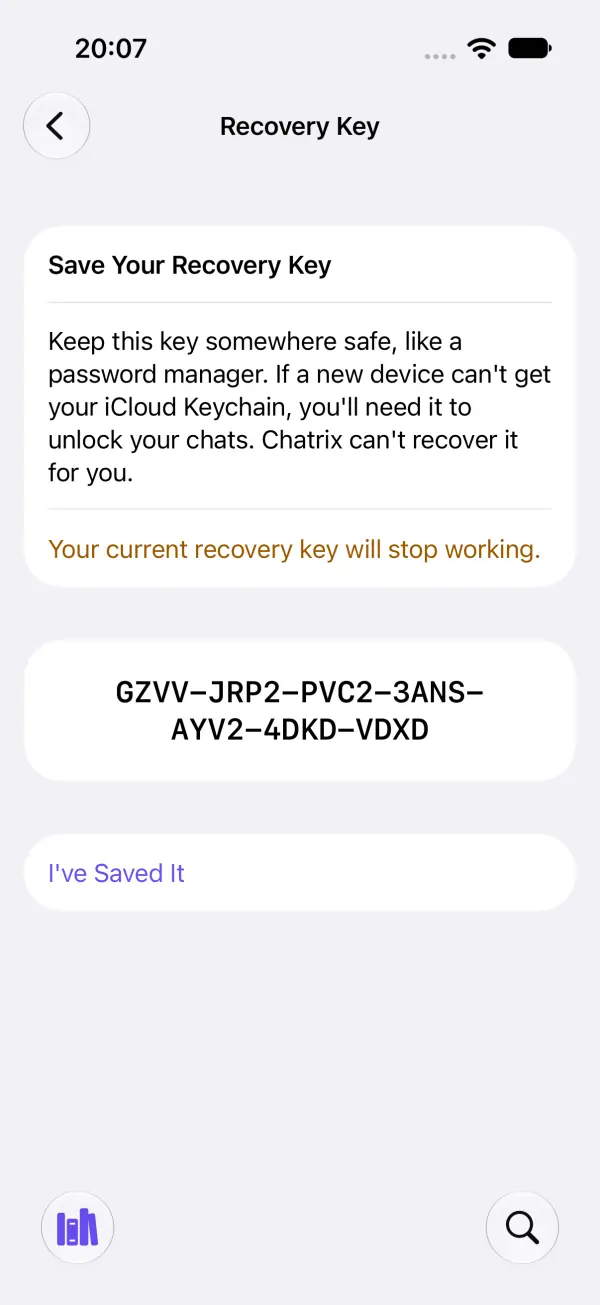
- The "Save Your Recovery Key" page opens with a 28-character recovery key (7 groups of 4 characters).
- Keep the recovery key somewhere safe, like a password manager, then select "I've Saved It".
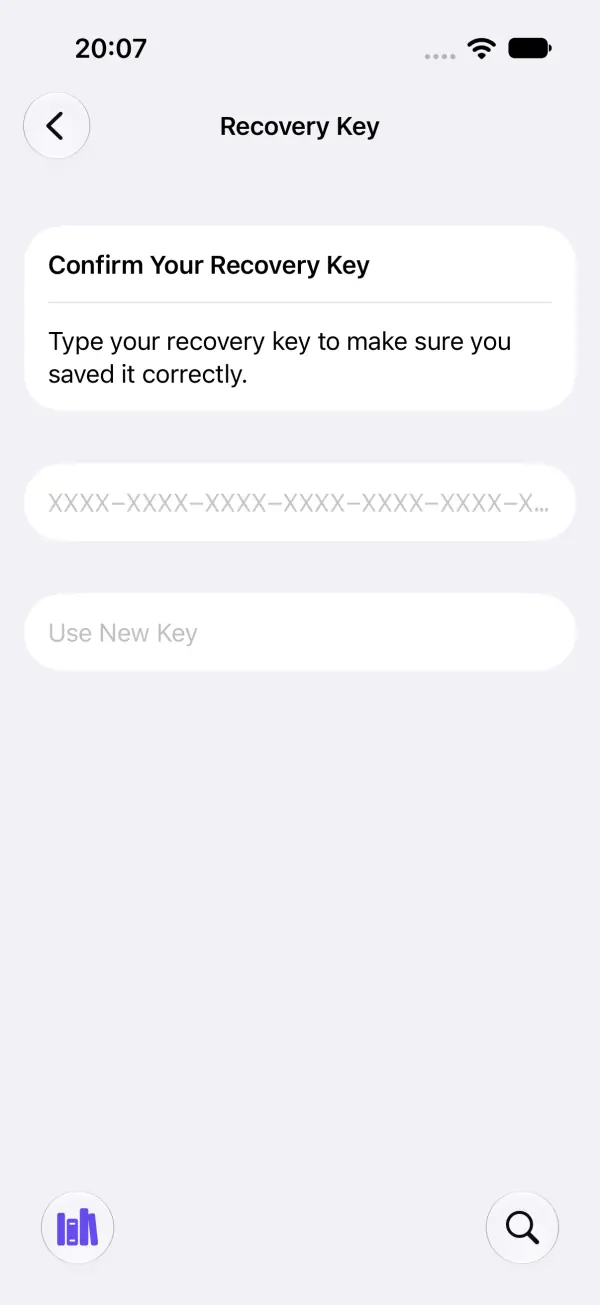
- On the next page, "Confirm Your Recovery Key", type it again and select "Turn On iCloud Sync". Upper and lower case both work, and you can leave out spaces and hyphens. If what you type doesn't match, "That doesn't match your recovery key." appears.
- After you confirm, Chatrix starts uploading your chat library. If you go back before that, iCloud sync stays off.
Chatrix doesn't keep your recovery key and won't show it again. If a new device doesn't have your iCloud Keychain yet, you'll need it to unlock your chats. If you lose it, create a new recovery key on a device that still syncs.
A second or new device
Only a device that doesn't have any chats yet (or has only the sample library) can switch to the chat library in iCloud.
- Sign in to iCloud with the same Apple Account and open Chatrix.
- Go to "Settings" › "iCloud Sync" and turn on "iCloud Sync".
- On the "Use Your iCloud Library?" page, select "Download Library".
- If this device doesn't have your iCloud Keychain yet, first enter the recovery key you saved when you turned on iCloud sync. If it's wrong, "That recovery key doesn't unlock this library." appears.
- Once the download starts, your conversation list appears first and messages download from newest to oldest. You can read and search whatever has already downloaded.
If this device only has the sample library, the page shows "The sample library will be removed first." After you select "Download Library" (and enter your recovery key if needed), Chatrix removes the sample library and then downloads your chat library from iCloud.
Both devices already have chats
If this device already has its own chats and iCloud has another device's chat library, "iCloud Has Another Library" appears at the top of the "iCloud Sync" page. Combining two libraries isn't available yet (it will come in a later update). Until then, this device can't sync with iCloud. The chats on this device aren't affected.
Sync status
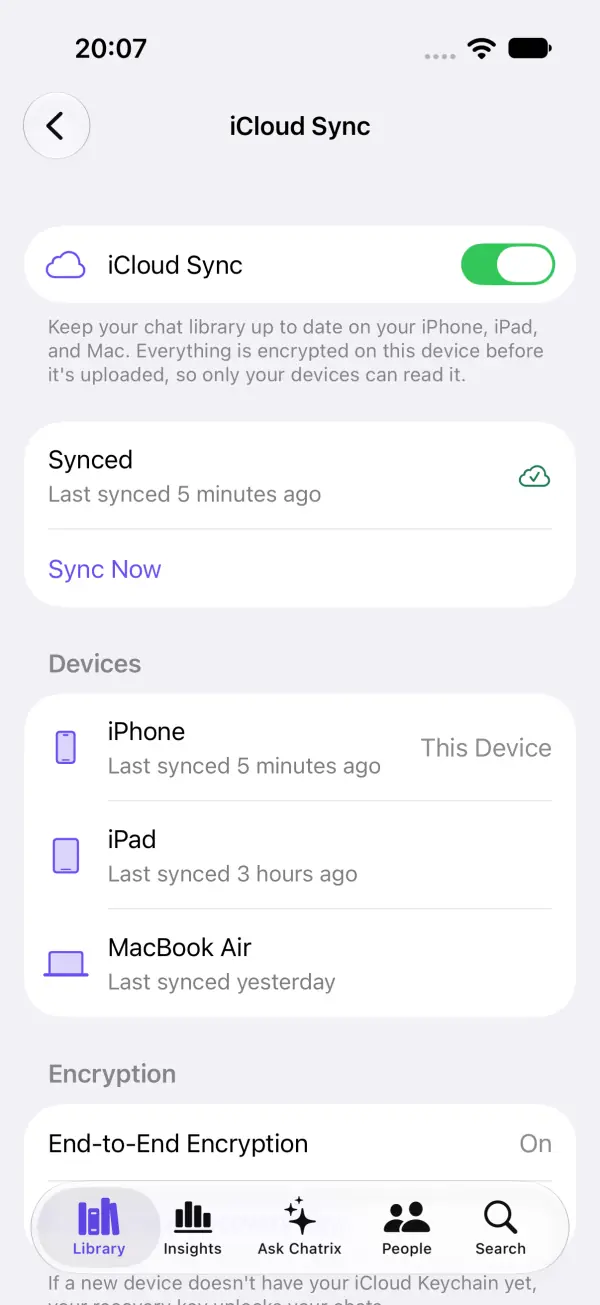
The "iCloud Sync" page shows the current status:
| Status | What it means |
|---|---|
| Synced | "Last synced …" appears below it. Before the first sync finishes, it says "Not synced yet". |
| Syncing… | Uploading or downloading. |
| Will try again soon | Syncing isn't possible right now (for example, the network is unstable or iCloud is busy), and Chatrix will try again automatically. An "Error code" appears below it. |
| iCloud storage is full | Free up iCloud storage, or turn off "Sync Photos and Files". Chatrix will try again later. |
| Paused | You need to do something, and the reason appears below it. See "When sync is paused". |
- While Chatrix is open, it syncs automatically: when you open or return to the app, when your chat library changes, when another device has updates, and every so often. Select "Sync Now" to sync right away.
- On iPhone and iPad, the system occasionally lets Chatrix fetch changes from your other devices in the background, and anything left over continues when the device is connected to power. On Mac, Chatrix syncs whenever it's open.
- If syncing keeps failing, use the YUCTS contact form and include the error code shown on the screen.
When sync is paused
While sync is paused, your chats on this device are all still there. Follow the message on the screen:
| Message on the screen | Reason and what to do |
|---|---|
| "Sign in to iCloud on this device to sync." | This device isn't signed in to iCloud. Sign in with your Apple Account in the Settings app on iPhone or iPad, or in System Settings on Mac. |
| "iCloud isn't available on this device." | iCloud is restricted on this device, for example by Screen Time or device management settings. |
| "iCloud isn't available right now. Chatrix will try again later." | iCloud is temporarily unavailable. You don't need to do anything. |
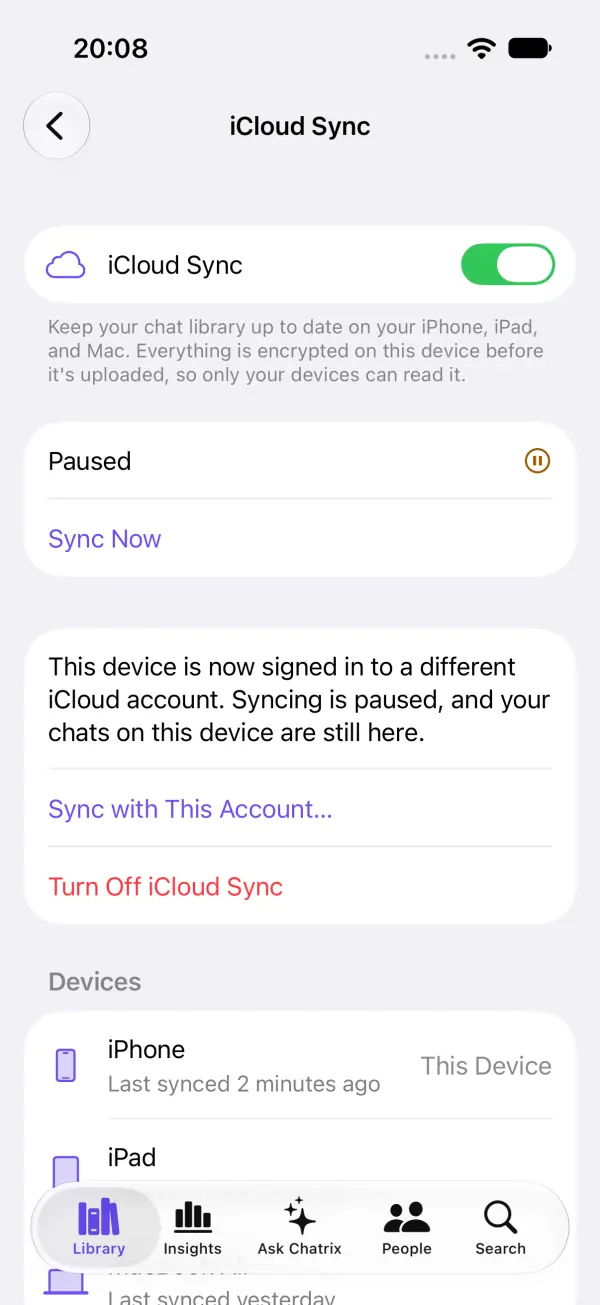
| "This device is now signed in to a different iCloud account." | You switched Apple Accounts. See "You switched Apple Accounts". |
| "Chatrix data was deleted from iCloud." | See "Chatrix data was deleted from iCloud". |
| "iCloud now has a different chat library, so this device stopped syncing." | iCloud now has a different chat library. Combining isn't available yet, so select "Turn Off iCloud Sync". |
| "Update Chatrix to keep syncing." | The data in iCloud is from a newer version of Chatrix. Update the app. |
You switched Apple Accounts
Chatrix doesn't automatically combine data from two Apple Accounts. Choose one:
- Select "Sync with This Account…": Chatrix checks the current account's iCloud. If it has no Chatrix data yet, save and confirm a new recovery key as on your first device, and this device's chats are uploaded to this account. If it already has another chat library, see "Both devices already have chats".
- Select "Turn Off iCloud Sync": this device stops syncing.
Chatrix data was deleted from iCloud
For example, the Chatrix data was deleted in the system's iCloud storage settings, or iCloud was included when you used "Delete All Data" on another device. Choose one:
- Select "Upload Chats from This Device…": save and confirm a new recovery key as on your first device, then select "Upload Chats" to upload again. Your previous recovery key stops working.
- Select "Turn Off iCloud Sync": this device stops syncing.
Devices
"Devices" lists every device that syncs this chat library, with the time each one last synced. "This Device" is listed first, and the others are in order of when they last synced. For other devices, "Last synced" is updated about every 6 hours, so it may show an earlier time than the actual one.
Encryption and the recovery key
"End-to-End Encryption" is always "On". Your chat library's key is stored in your iCloud Keychain: a new device can unlock your chats once it has your iCloud Keychain, and needs the recovery key only until then.
Create a new recovery key
If you lose your recovery key, or are worried someone else has seen it, create a new one:
- Go to "Settings" › "iCloud Sync" and select "Create New Recovery Key…". If App Lock is on, you first verify with Face ID, Touch ID, Optic ID or your passcode.
- The page with the new recovery key reminds you: "Your current recovery key will stop working." Keep the new recovery key somewhere safe, then select "I've Saved It".
- On the next page, "Confirm Your Recovery Key", type it again and select "Use New Key".
The new recovery key takes effect when you select "Use New Key", and your current one stops working at the same time. If you go back before that, nothing changes.
Sync photos and files
- "Sync Photos and Files" is on by default. Photos and files imported with your chats, and files you fill in later, are encrypted and synced.
- Files larger than 50 MB aren't synced for now. When there are many photos and files, syncing them takes several rounds.
- Conversation avatars (see "Conversation Info") are always encrypted and synced, regardless of this setting.
- When it's off, this device doesn't upload or download photos and files, which saves iCloud storage. Chats still sync. This setting only affects this device.
- "Estimated iCloud Storage" is the estimated size of your chats in iCloud, not including photos and files. For actual usage, check the system's iCloud storage settings.
Deleted chats
- A chat you delete on one device is also deleted on your other devices after they sync. To delete a chat, select "Delete Conversation…" in "Conversation Info", then select "Delete Conversation" on the confirmation page.
- The content in iCloud is removed 30 days after you delete it, once every device that synced in the last 90 days has synced. A small amount of data recording the deletion is kept for 180 days so that devices that haven't synced for a while still find out.
- If more than 20% of everything would be removed from iCloud at once, the "iCloud Sync" page asks first: "Chats you deleted still take up space in iCloud. Remove them from iCloud too?" Nothing is removed until you select "Remove from iCloud".
Turning off iCloud sync
Go to "Settings" › "iCloud Sync" and turn off "iCloud Sync". The data on this device and in iCloud is kept, and when you turn sync on again, it picks up where it left off.
To delete Chatrix data from iCloud, use the system's iCloud storage settings. Devices that are still syncing will show that sync is paused (see "Chatrix data was deleted from iCloud").
Current limitations
- Two chat libraries that both already have chats can't be combined yet (this will come in a later update).
- Files larger than 50 MB aren't synced for now. A backup includes them.