Importing Chats
Chatrix reads the files you export yourself from your chat apps. First export your chats in the original chat app, then hand the file to Chatrix. Importing happens only on your device, and the original export file isn't changed.
Supported apps
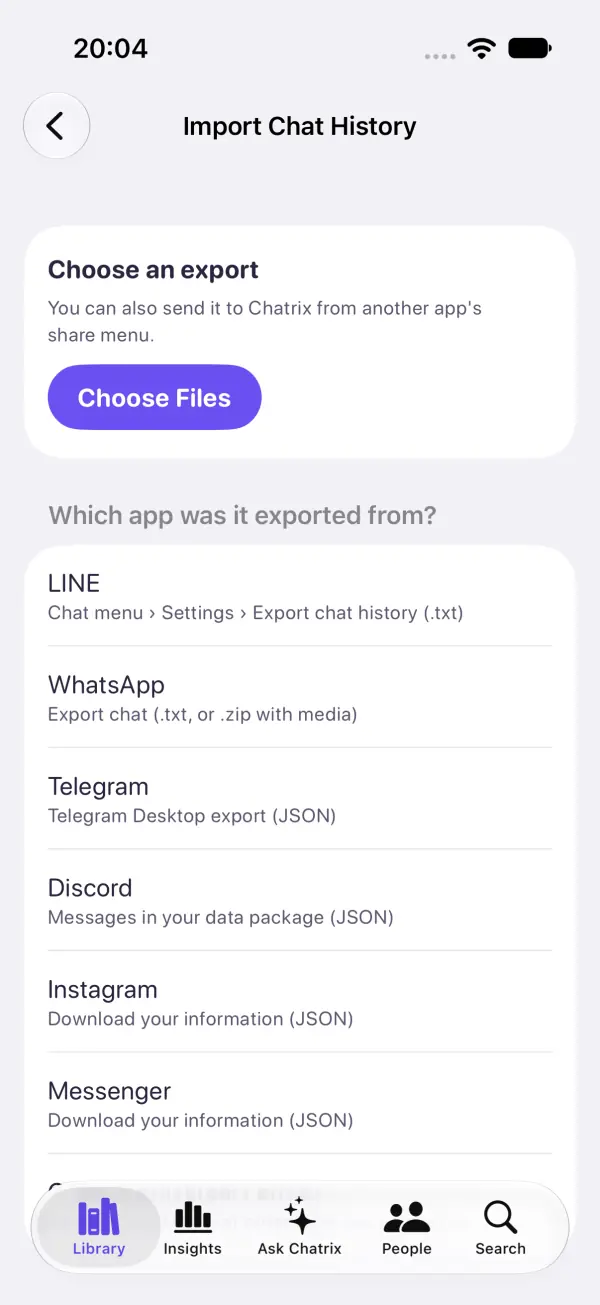
Go to "Library" and select "Import Chat History". "Which app was it exported from?" at the bottom of the import page lists how to export from each app:
| App | Export file | Status |
|---|---|---|
| LINE | Text file (.txt) | Supported. See "LINE". |
| .zip on iPhone; text file (.txt) on Android | Supported. See "WhatsApp". | |
| Telegram | JSON | Supported. See "Telegram". |
| KakaoTalk | Text file (.txt); .csv from KakaoTalk for Mac | Supported (iPhone, iPad). See "KakaoTalk". |
| Discord | Data package (.zip) | Supported. See "Discord". |
| JSON (.zip) | Supported. See "Instagram and Messenger". | |
| Messenger | JSON (.zip) | Supported. See "Instagram and Messenger". |
| Element (Matrix) | JSON | Supported (iPhone, iPad). See "Element (Matrix)". |
| X | Data archive (.zip) | Supported (iPhone, iPad). See "X". |
| Copy of your data (.zip) | Supported (iPhone, iPad). See "LinkedIn". | |
| ChatGPT | Data export (.zip) | Supported (iPhone, iPad). See "ChatGPT". |
| Claude | Data export (.zip) | Supported (iPhone, iPad). See "Claude". |
| Gemini | JSON from Google Takeout (.zip) | Supported (iPhone, iPad). See "Gemini". |
| Chatrix Universal Format | JSON or JSONL | Supported. See "Chatrix Universal Format". |
For now, KakaoTalk, Element (Matrix), X, LinkedIn, ChatGPT, Claude and Gemini can be imported only on iPhone and iPad; they aren't in the list in the Mac version of Chatrix. If you exported a file on a computer or an Android phone, save it to the Files app on your iPhone or iPad first (for example, in iCloud Drive), then import it.
The last row of the list, "User Guide", opens this page: in the app on iPhone and iPad, and in your browser on Mac.
LINE
The import page says "Chat menu › Settings › Export chat history (.txt)".
- In LINE on your phone, open the chat you want to export, select the menu (≡) at the top, then choose Settings › Export chat history. It's in the same place on iPhone and Android; follow LINE's official help for the exact menu names.
- Share the text file with Chatrix, or save it to Files first and then import it (see "Ways to import").
- LINE's text file doesn't include photos, videos or other files; the export only keeps words like [Photo]. If LINE's language is Traditional Chinese, English or Japanese, Chatrix shows these words as placeholders, and you can fill in the files later. In other languages, these words currently appear as ordinary text.
- Keep the export file's original name: Chatrix uses the file name to tell which chat it is. If you rename the file before importing it, it becomes a separate conversation.
- Text files exported from LINE for Windows aren't supported yet.
WhatsApp
The import page says "Export chat (.txt, or .zip with media)".
- In WhatsApp, open the chat you want to export. According to WhatsApp's official help, the steps are roughly: select the contact or group name at the top, choose Export Chat, then choose whether to attach media. Follow WhatsApp's official help for the exact menu names.
- Share the export with Chatrix, or save it to Files first and then import it (see "Ways to import").
- On iPhone, you get a .zip file. You can import it as it is, without unzipping it. On Android, you get a text file (.txt), and attached media come as separate files. Put the text file and the media files in the same folder, then choose the whole folder.
- If you attach media, photos, videos and voice messages are imported too. If you don't, they appear as placeholders, and you can fill in the files later.
- For now, Chatrix only recognizes WhatsApp's system text when WhatsApp's language is English, such as the note that media was left out. In other languages, this text appears as it is, and media that wasn't attached doesn't become a placeholder.
- It's fine to import an export without media first: if you later import a version of the same chat with media, photos and other media are filled into the existing placeholders instead of being added again as separate messages.
- The export doesn't mark which one is you. If Chatrix can't tell, choose yourself in "Which one is you?" on the preview page. See "Which one is you?".
- Keep the export file's original name: Chatrix uses the file name as the conversation name and to tell which conversation it is. If you rename the file before importing it, it becomes a separate conversation.
Telegram
The import page says "Telegram Desktop export (JSON)".
- Export your chats with Telegram Desktop on a computer (a single chat or your whole account), and choose JSON as the format. To import photos and files too, select them when you export.
- When the export finishes, you get a folder containing result.json. Hand the whole folder (or result.json) to Chatrix.
- Photos and files must be in the same folder as result.json so that Chatrix can find them. Anything you didn't select when exporting appears as a placeholder.
- If the export contains your account information (for example, when you export your whole account), Chatrix recognizes which one is you automatically.
KakaoTalk
The import page says "Chat room ≡ › Settings › Export Chats (.txt, or .csv on Mac)".
- In KakaoTalk, open the chat room you want to export. According to Kakao's official help (follow it for the exact menu names), the steps are roughly:
- On your phone (Android, iPhone, iPad): select the menu (≡) in the top-right corner, then the settings icon (gear) at the bottom, and choose Export Messages (대화내용 내보내기 when KakaoTalk is in Korean). Then choose whether to send only the text or to save all messages to your device.
- On Windows: export the chat from the chat room's menu (≡), or press Ctrl+S. It's saved as a .txt file.
- On Mac: open the chat room settings from the chat room's menu (≡), and save the chat in the section for managing chats. Kakao's help says it's saved as .txt, but it's actually saved as .csv.
- Hand the export file to Chatrix (no need to unzip a .zip file). If a chat exported on iPhone or iPad is split into several files (with names ending in -1, -2…), put them in the same folder and choose the whole folder. Chatrix combines them into one conversation.
- For now, Chatrix only recognizes files exported when KakaoTalk's language is Korean or English. Exports made in other languages (such as Chinese or Japanese) aren't recognized automatically, and even if you choose KakaoTalk in the list in "When the format isn't recognized", no messages can be read.
- Text messages, locations, polls and system messages such as invitations, joins and departures are imported. Photos, videos, stickers, voice messages and files only leave words like "사진" or "Photo" in the export, so they appear as placeholders, and you can fill in the files later. Files saved along with the export when you save all messages to your device aren't imported automatically either (attachments exported on Android don't keep their original file names).
- Times in the export have no time zone, so Chatrix shows them exactly as written in the file.
- Older exports from phones mark you as "회원님" or "you", so Chatrix recognizes you automatically. Newer exports use your nickname, so choose yourself in "Which one is you?". See "Which one is you?".
- Files exported on iPhone or iPad since 2023 don't include the chat room's name, so Chatrix names the conversation after the people who sent messages (up to 3, with the rest shown as "+N"). You can rename it in "Conversation Info".
- KakaoTalk for Windows only saves the messages already loaded in the chat room. To include older messages, load them in the chat room before you export.
- The .csv from KakaoTalk for Mac uses the chat room name in its file name as the conversation name and to tell which conversation it is, so keep the original file name. Any single message larger than about 4 MB in the .csv is skipped.
Discord
The import page says "Messages in your data package (JSON)".
- Request your data package from Discord. According to Discord's official help, the path is roughly User Settings › Data & Privacy › Request Data, with Messages selected. Follow Discord's official help for the exact menu names.
- When your data is ready, a download link is sent to your email. Download package.zip and hand it to Chatrix as it is, without unzipping it.
- The data package only contains messages you sent, so conversations only show your own messages. Chatrix recognizes which one is you automatically.
- In the data package, attachments are only links on Discord. After importing, they appear as placeholders, and you can fill in the files later.
- For full conversations that include other people's messages, you can use JSON exported with DiscordChatExporter, a third-party tool, instead. If you import it along with the data package, the same message isn't added twice.
Instagram and Messenger
The import page says "Download your information (JSON)".
- Request a download of your information from Instagram or Facebook. According to Meta's official help, the path is roughly Accounts Center › Your information and permissions › Download your information. Choose your account, select Messages and choose JSON as the format. Follow Meta's official help for the exact menu names.
- You're notified when the file is ready. Download the .zip and hand it to Chatrix as it is, without unzipping it. An unzipped folder works too.
- Choose the whole .zip or folder. If you choose only one of the message files (for example, message_1.json), Chatrix can read only that file, and the preview page shows "Only This File Could Be Read": "Chatrix can only open the file you chose, so older messages and photos are missing. To import the whole conversation, choose the folder or the .zip instead."
- Every conversation in the download is imported at once. Attachments, shared links, reactions, unsent messages and calls are imported too, and text that appears garbled in Meta's export is fixed automatically.
- The export doesn't mark which one is you. The one person who's in every conversation is recognized as you. If Chatrix can't tell (for example, when there's only one conversation), choose yourself in "Which one is you?".
- If Chatrix can't tell whether the file is from Instagram or Messenger, "Chatrix couldn't recognize this file. Which app was it exported from?" appears. Select Instagram or Messenger.
Element (Matrix)
The import page says "Room info › Export chat (JSON)".
- Open the room you want to export in Element on the web or on your computer. According to Element's official help, the steps are roughly: select the icon in the top-right corner to open Room info, choose Export chat, check the export settings (choose JSON as the format), then select Export. Follow Element's official help for the exact menu names.
- When the export finishes, hand the saved file to Chatrix. If it's a .zip, there's no need to unzip it.
- Chatrix only reads the JSON format. Exports in HTML or plain text format can't be imported.
- Text, photos, videos, voice messages, files, locations, stickers, replies and reactions are imported, along with events such as members joining or leaving and the room being renamed.
- Photos and files always appear as placeholders first (even if they were included in the export), and you can fill in the files later.
- Edited messages don't add an extra message, and deleted messages aren't imported. Encrypted messages that weren't decrypted when you exported can't be read; they're counted in "… item couldn't be read and will be skipped." on the preview page.
X
The import page says "Settings › Your account › Download an archive of your data".
- In X, go to Settings and privacy › Your account › Download an archive of your data, enter your password and complete the verification, then request your archive.
- When your archive is ready, X lets you know by email or with a notification in the app. Download the .zip and hand it to Chatrix as it is, without unzipping it. An unzipped folder works too.
- One-on-one and group Direct Messages are imported. Photos, GIFs and videos are imported too when they're in the archive; any that aren't appear as placeholders.
- t.co short links in messages are changed back to the original links. Reactions (except custom emoji), members joining or leaving and groups being renamed are imported too.
- Direct Messages in the archive only have the other person's numeric account ID. Chatrix matches names using the accounts mentioned in your own posts. People it can't match appear as their numeric ID, and you can change the name on the person's page.
- When you choose the whole archive, Chatrix recognizes which one is you automatically from the account data in it.
- End-to-end encrypted chats are still encrypted in the archive, so Chatrix can't read them. If the archive has such chats, the preview page shows "Encrypted Chats Weren't Imported": "This export includes end-to-end encrypted chats. Their contents can't be read, so only your other messages were imported."
LinkedIn
The import page says "Settings & Privacy › Data privacy › Get a copy of your data (Messages)".
- Sign in to LinkedIn in a browser on a computer (LinkedIn's help says you can't request your data on mobile yet). According to LinkedIn's official help, the steps are roughly: select the Me icon at the top, choose Settings & Privacy › Data Privacy › Download your data, select Messages, then select Request archive. Follow LinkedIn's official help for the exact menu names.
- You get an email when the file is ready, and the download link works for 72 hours. Download the .zip and hand it to Chatrix as it is, without unzipping it. An unzipped folder works too.
- Choose the whole .zip or folder. If it includes invitation or profile data, Chatrix uses that to recognize which one is you. Without that data (or if you choose only messages.csv), Chatrix goes by the person who appears most often. If that's wrong, choose yourself in "Which one is you?".
- Drafts and sponsored messages (ads) aren't imported.
- Attachments in the export are only links that expire, without the files themselves, so they appear as placeholders, and you can fill in the files later.
- The export has no message IDs, so Chatrix uses the time, sender and content to tell whether two messages are the same.
- People who can't be identified (for example, because their account was deleted or hidden) are all called "LinkedIn Member" in the export, and Chatrix treats them as one person.
Each conversation from ChatGPT, Claude and Gemini is imported as a one-on-one conversation between you and the AI.
- Your name in these conversations is always "You" in English (for example, search results show "You: …"). It isn't translated, and you can't rename it.
- ChatGPT, Claude and Gemini appear in "People". Friends with the same names may be listed with the AI in "Possible matches"; just don't merge them.
- The statistics for "All Conversations" in Insights don't count these AI conversations. See "Scope and period". Search and Ask Chatrix do include them.
ChatGPT
The import page says "Settings › Data controls › Export data (.zip)".
- According to OpenAI's official help, in ChatGPT, go to Settings › Data controls › Export data, select Export, then select Confirm export. You can request it on the web and in the ChatGPT app for iPhone and Android. Follow OpenAI's official help for the exact menu names.
- When the export is ready, you get an email or text message (this can take up to 7 days). Select Download data export in it to download the .zip (the link expires after 24 hours). Hand the download to Chatrix as it is, without unzipping it. An unzipped folder works too.
- If you edited a prompt or regenerated a response in a conversation, only the version last shown on screen is imported.
- Reasoning, custom instructions and memories, as well as tool and system messages, aren't imported.
- Images and files you uploaded to ChatGPT are imported too if they're in the export; any that can't be found appear as placeholders. Images generated by ChatGPT aren't imported.
- Conversations in projects are imported as ordinary conversations, not grouped by project. Group chats aren't imported.
- In an export requested from OpenAI's privacy site (privacy.openai.com), the conversations may be inside another .zip. Unzip the outer .zip first, then choose the .zip inside it.
- Conversations you've already deleted aren't in the export.
Claude
The import page says "Settings › Privacy › Export data (.zip)".
- Use Claude on the web or Claude Desktop. According to Anthropic's official help, go to Settings › Privacy and select Export data. You can't export from the Claude app for iPhone, iPad or Android. Follow Anthropic's official help for the exact menu names.
- When the export has been processed, a download link is sent to your email. The link expires after 24 hours and may work only once. Hand the download to Chatrix as it is, without unzipping it. If the downloaded file doesn't have a .zip extension, you can also select "Choose Files" on the import page and choose it directly.
- Since September 2026, exports are split into several ZIP files (for example, conversations-000.zip and projects-000.zip). Choose conversations-000.zip directly. If you choose the folder that contains these ZIP files, Chatrix doesn't unzip the ZIP files inside it.
- Artifacts (documents, code and other content Claude creates) keep their titles and content.
- Claude's thinking and tool activity aren't imported.
- If a conversation has several branches (for example, because you edited a prompt or regenerated a response), only the latest branch is imported.
- The original files you uploaded aren't in the export, so they appear as placeholders, and you can fill in the files later.
Gemini
The import page says "Google Takeout › My Activity › Gemini Apps (JSON)".
- Open Google Takeout. According to Google's official help, the steps are roughly: select Deselect all, check My Activity, select All activity data included, and check only Gemini Apps. Follow Google's official help for the exact menu names.
- In the My Activity row, select Multiple formats and change the format of activity records from HTML to JSON. The default HTML can't be imported.
- Select Next step, choose .zip as the file type (.tgz can't be imported), then select Create export.
- When the export is done, you get an email with a download link (the link works for 7 days). Download the .zip and hand it to Chatrix as it is, without unzipping it. An unzipped folder works too.
- The export has no conversation names, so Chatrix uses the first line of each conversation's first prompt as its name. You can rename it in "Conversation Info".
- Chatrix separates conversations by their Gemini conversation links. For older records without a conversation link, a gap of more than 30 minutes starts a new conversation.
- Files attached to prompts are imported too if they can be found in the same folder; any that can't be found appear as placeholders.
- If the export is too large and split into several .zip files, choose the one that contains your Gemini activity records (the file is named MyActivity.json for accounts in English). Attachments in the other .zip files appear as placeholders.
- The "Gemini" item in Google Takeout only has the settings of your Gems, not your conversations, so you don't need to select it. Gemini Live conversations aren't supported yet.
- Conversations you had while Gemini Apps Activity was turned off aren't in the export.
- If your Google Account's language isn't English or German, the start of each prompt may keep words that Google added, and records that aren't prompts, such as creating a Canvas, may be imported as prompts.
Chatrix Universal Format
The import page says "An open JSON format other tools can convert to". If you've used another tool to convert your chats to the Chatrix Universal Format (JSON or JSONL), you can import them directly.
Ways to import
| Way | How |
|---|---|
| Share sheet | Choose Chatrix when exporting from the chat app, or share the export file with Chatrix from the Files app, then open Chatrix. See "Inbox". |
| Files | Go to "Library", select "Import Chat History", then select "Choose Files" and choose the export files or exported folders. You can choose several at once. |
| Drag and drop (iPad, Mac) | Drag the export file or folder onto the conversation list in "Library". See "iPad and Mac". |
| Mac menu | Choose "Import Chat History…" from the File menu in the menu bar, or press ⌘O (this also works on iPad with a keyboard). |
| Shortcuts | Pass the export files to the "Import Chat History" action in the Shortcuts app. See "Shortcuts and Siri". |
You can choose, share or drag a .zip file as it is; there's no need to unzip it first, and an unzipped folder works too. Chatrix unzips the file on your device and deletes the unzipped copy when the import ends. If your device doesn't have enough free space to unzip it, it can't be imported.
- Only a .zip that you choose, share or drag directly is unzipped. When you choose a folder, .zip files in it aren't unzipped. A .zip inside a .zip isn't unzipped either: unzip the outer one first, then choose the .zip inside.
- .tgz and other compressed formats aren't supported; "Chatrix couldn't recognize this file. Which app was it exported from?" appears. Choose .zip when you export.
- CSV files (such as the .csv from KakaoTalk for Mac) may not show Chatrix in the share sheet. We recommend selecting "Choose Files" on the import page to choose them.
When you don't have any conversations yet, there's also an "Import Chat History" button in the middle of "Library".
The import page opens on a new page. Before the import starts, going back to the previous page cancels it. Only one import can run at a time.
Inbox
Files shared with Chatrix from other apps (and files passed in with Shortcuts) go into the inbox first, and the import starts automatically when you return to Chatrix.
- When the inbox has files that haven't been imported yet, "… file in your inbox" appears at the top of "Library". Select "Import" to start importing.
- "Inbox" on the import page lists everything that hasn't been imported yet. Select an item to start importing it.
- If you don't want to import an item, swipe left on it, or touch and hold it (on Mac, right-click it) and choose "Remove from Inbox". This deletes only the shared copy; the file in the original app isn't affected.
- After an item is imported, it's removed from the inbox automatically.
- An item whose import started but didn't finish (for example, Chatrix was closed during the import) doesn't start again automatically and stays in the inbox. To try again, select "Import" in the notice at the top of "Library", or select the item in "Inbox" on the import page.
When the format isn't recognized
Chatrix works out the export file's format automatically. If it can't, "Chatrix couldn't recognize this file. Which app was it exported from?" appears. Select the app the file was exported from. The list shows Chatrix (JSON / JSONL), Telegram, Discord (DiscordChatExporter), Discord, LINE, WhatsApp, Instagram, Messenger, Element (Matrix), X, LinkedIn, KakaoTalk, ChatGPT, Claude, Gemini (in the Mac version, the list ends at Messenger).
If reading the file fails, "This export couldn't be imported" appears with an error code. Select "Try Another Format" to choose a different app and try again, or share a diagnostic file with us.
Preview and "Which one is you?"
After Chatrix reads the export (the screen shows "Reading the export…"), it shows a preview first. Nothing is written to your chat library yet.
The totals for this import are at the top: "New", "Already have" and "Media to fill". Below them, each conversation is listed separately:
| Item | What it means |
|---|---|
| "New messages" | The number of messages this import will add. |
| "Already in your library" | Messages already in your chat library. They aren't added again. |
| "Attachments" | Photos, videos, files and so on included in the export. They're added to Chatrix too. |
| "Missing media this export can fill" | Attachments that are only placeholders in your chat library but are included in this export. They're filled in automatically when you import. |
| Possible duplicates | The number of messages with the same content as messages in your chat library but slightly different times. If most of the times differ by the same number of hours, Chatrix reminds you that the export may come from a device set to a different time zone. |
If some data can't be read, "… item couldn't be read and will be skipped." appears, and everything else is imported as usual. If an X archive has end-to-end encrypted chats, "Encrypted Chats Weren't Imported" appears. See "X".
Which one is you?
Your messages appear on the right side of a conversation. "Which one is you?" for each conversation is filled in with what Chatrix worked out automatically, and the reason appears below it:
- "Marked in the export."
- "Chatrix remembered you from an earlier import."
- "You're the only person in every chat of this import."
- If Chatrix can't tell, it shows "Choose yourself so your messages appear on the right."
If the automatic choice is wrong or nothing is chosen yet, select "Which one is you?" and choose your own name. Your choice is remembered as your identity in that chat app, and it's used automatically the next time you import from the same app. If you choose "Not sure", all messages appear on the left.
Starting the import
When everything looks right, select "Import" in the top-right corner.
- While importing, "Messages imported: … of …" appears, and you can't go back.
- "Conversations that finish importing are kept even if you quit Chatrix." If the import is interrupted, import the same file again to finish the rest.
- When it's done, "Import complete" appears with the number of new messages and messages you already had, the number of attachments saved, and the number of attachments not included in the export that are shown as placeholders for now. Select "Done" to return to your chat library.
- If some messages in the export differ from the ones in your chat library and Chatrix keeps the versions already in your library, the completion screen also shows "Messages that differ from your library, kept unchanged: …" (these messages are also counted among the messages you already had). See "Importing again doesn't create duplicates".
Importing again doesn't create duplicates
When you export and import the same conversation again later, messages already in your chat library aren't added again; only new messages are added.
- If you first import a text-only version and later import a version with photos and files, the placeholders are filled in with the files automatically.
- Photos and files already in your chat library aren't replaced with different files by a later import.
- Telegram, Discord, X, Element, ChatGPT and Claude exports (and the Chatrix Universal Format when it has message IDs) identify the same message by its message ID. If the same message's content differs from your chat library (for example, it was edited in the original app), Chatrix only fills in photos and files that were missing and keeps the rest as it is in your chat library.
- When messages are kept unchanged for either of the reasons above, "Messages that differ from your library, kept unchanged: …" appears when the import is complete.
- In a conversation, select "Conversation Info" and then "Import Again" to open the import page.
- If you import a deleted conversation again, it reappears in your chat library.
Diagnostic files
If some data can't be read, or the whole export can't be imported, "Share Diagnostic File" appears on the preview page or the error page.
- "The diagnostic file only describes the shape of what couldn't be read — no names, messages or file names. You can look at it before sending it to us."
- The file is created only when you select "Share Diagnostic File". Then use the system share sheet to save or send it.
- To send it to us, use the YUCTS contact form. We use it to improve importing.