Insights
"Insights" turns your chats into statistics, all calculated on your device. The statistics in Overview, Rhythm, Lexicon, Milestones and Year in Review don't need Apple Intelligence. On devices that support Apple Intelligence, there are also "Tone & Topics", "Recaps" and "Bond Story", as well as a line for the year in Year in Review, made by Apple Intelligence on this device. See "Apple Intelligence".
- iPhone: Select "Insights" in the tab bar. "Overview" appears first, and below it you can select "Rhythm", "Lexicon", "Tone & Topics", "Milestones", "Year in Review", "Recaps" and "Bond Story". If this device doesn't support Apple Intelligence, "Tone & Topics", "Recaps" and "Bond Story" aren't listed.
- iPad and Mac: Select "Insights" in the sidebar. The pages are listed in the middle column, and their content appears on the right.
When your chat library changes (for example, when you import a new conversation), insights are recalculated automatically.
Scope and period
At the top of each page, you can choose:
- Scope: Select the title ("All Conversations" by default) to choose all conversations or just one of them.
- Period: "30 Days", "90 Days", "1 Year" or "All Time". The default is "1 Year". The period counts back from today, so if the chats you imported are older, choose "All Time".
AI conversations imported from ChatGPT, Claude and Gemini aren't counted in the statistics for "All Conversations" (for example, the numbers in Overview, Milestones and Year in Review). When you set the scope to one of those AI conversations, its statistics are calculated as usual. Search and Ask Chatrix include AI conversations.
The scope and period are shared across the pages. "Milestones", "Year in Review", "Recaps" and "Bond Story" have a scope but no period.
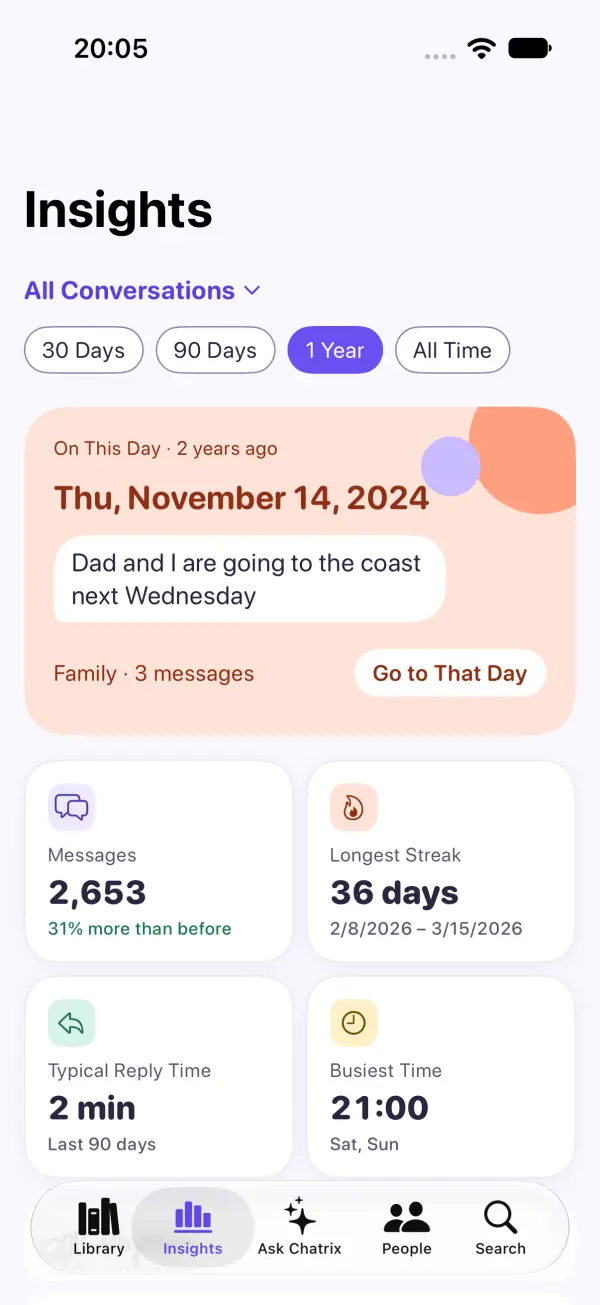
Overview
- On This Day: If you chatted on this day in past years, an "On This Day · … year ago" card appears at the top, showing one message from that day, the conversation's name and the number of messages. Select "Go to That Day" to open that conversation at that message.
- "Messages": the number of messages in the period, and how many more or fewer there are compared with the previous period of the same length.
- "Longest Streak": the longest run of days in a row with chats, and its start and end dates.
- "Typical Reply Time": based on the "Last 90 days".
- "Busiest Time": the time of day with the most messages, and the day of the week with the most messages.
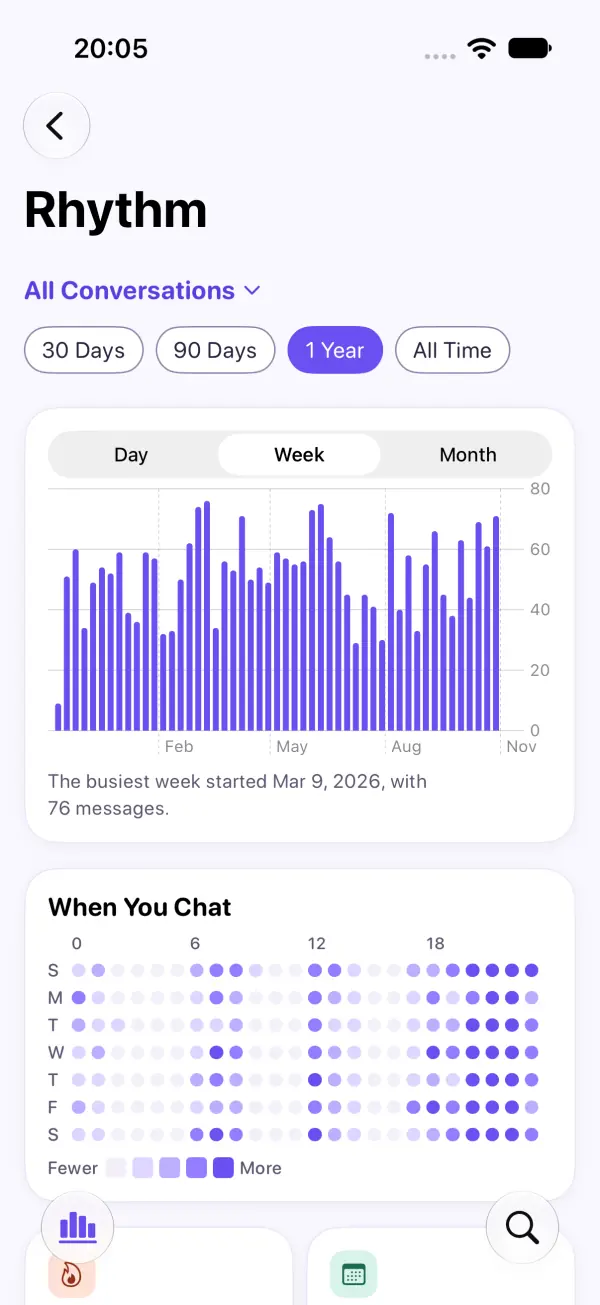
Rhythm
- Bar chart of messages: In "Group By", choose "Day", "Week" or "Month". Below the chart, the busiest day, week or month is described.
- "When You Chat": a heat map by day of the week and time of day. Darker means more messages.
- "Longest Streak" and "Current Streak".
- "Reply Times": the distribution and median of reply times. A message counts as a reply only when the speaker changes and it's within 12 hours.
- "Who Talks Most": each person's number of messages, their share, and how many times they started a conversation.
When the scope is a single conversation, the interactions in that conversation also appear:
| Conversation | What appears |
|---|---|
| One-on-one | "You Two": for you and the other person, "Conversations Started", "Typical Reply Time", "Most Messages in a Row" and "Long Silences Broken" (who spoke first after 3 or more days without messages). |
| Group | "Who Replies to Whom": who most often replies to whom within 12 hours. "Quiet Lately": members who haven't said anything during the period. |
When the period is "All Time", these interactions are based on the last 12 months.
Lexicon
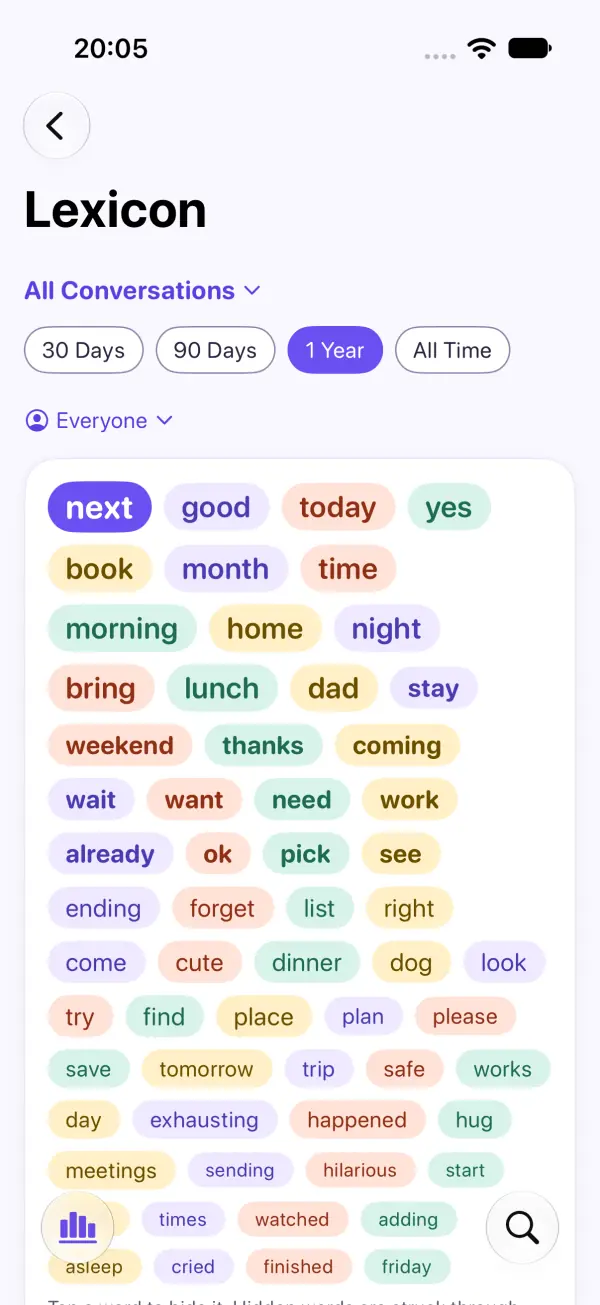
"Lexicon" shows the words that appear most often. The more often a word appears, the bigger it is.
- Select "Everyone" to see only what one person said.
- Very common words without much meaning (stop words) are skipped automatically. See "Dictionary and Stop Words".
- "Favorite Emoji" and "Most Shared Links" (by domain) are listed below.
- When there are a lot of messages, only the newest messages are counted, and "Based on the latest … message." appears below.
- When there aren't enough messages yet, "No words yet" appears. Try a longer period.
Hiding words
If you don't want to see a word, select it in the Lexicon to hide it. Hidden words appear struck through at the end; select one again to bring it back. There's no separate confirmation.
- Hidden words don't appear in the Lexicon on any of your devices.
- You can also bring back any hidden word in "Settings" › "Dictionary & Stop Words" › "Hidden". See "Hidden words".
Tone & Topics
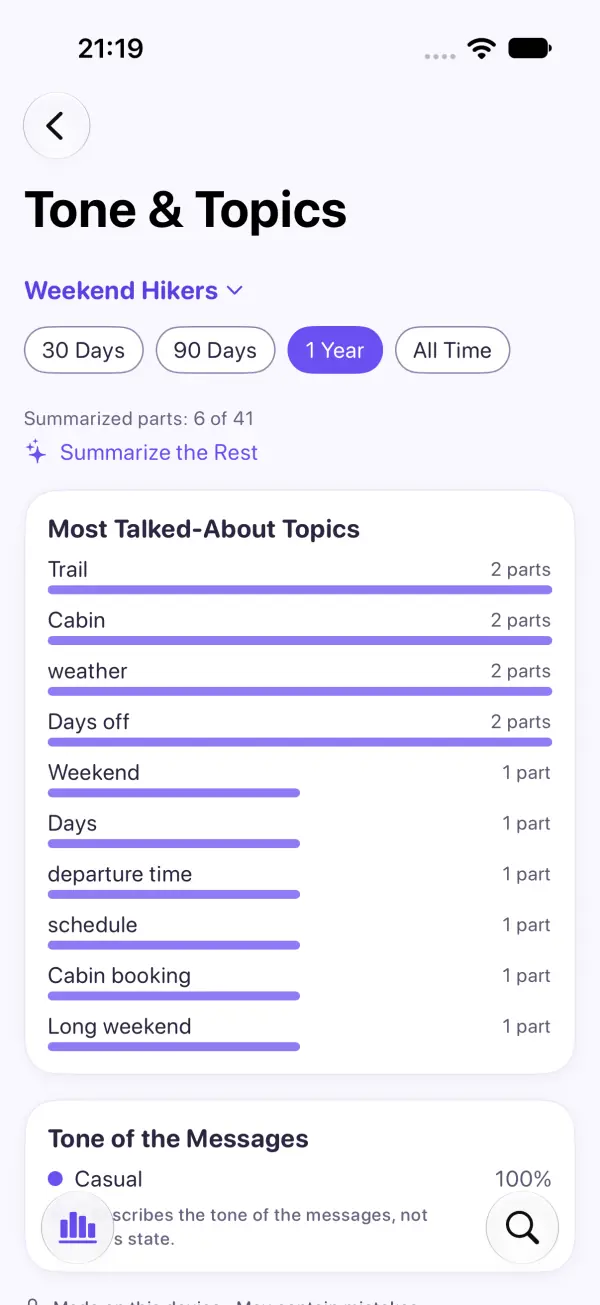
"Tone & Topics" uses Apple Intelligence's part summaries to count the most talked-about topics and the tone of the messages in the scope and period, without asking Apple Intelligence for any further analysis. If this device doesn't support Apple Intelligence, Insights doesn't list this page.
- "Summarized parts: … of …" at the top shows how many of the parts that can be summarized in the period already have a summary. If some parts haven't been summarized yet, select "Summarize the Rest" to fill them in (newest first). "Summarizing Parts…" and the progress appear at the top, and you can select "Stop" to stop. While this runs, iPhone and iPad don't lock the screen automatically; leaving the page stops it.
- "Most Talked-About Topics": up to 10 topics, sorted by the number of parts that talk about each one ("… part"). Topics that differ only in upper and lower case, or in full-width and half-width characters, are combined.
- "Tone of the Messages": the share of each tone across the whole period. When the summaries span different weeks, months or years, a chart of the shares over time also appears (by week for periods up to three months, by month up to two years, and by year for anything longer). The top 5 tones each have their own color, and the rest are combined into "Other".
- The page states: "Only describes the tone of the messages, not anyone's state." The tone is Apple Intelligence's description of each part of a conversation as a whole, not a judgment of anyone.
- "Made on this device · May contain mistakes" appears at the bottom.
- If nothing in the period has been summarized yet, "No parts in this period have been summarized yet." appears. If there are no parts that can be summarized, "There are no conversations to summarize in this period." appears.
Milestones
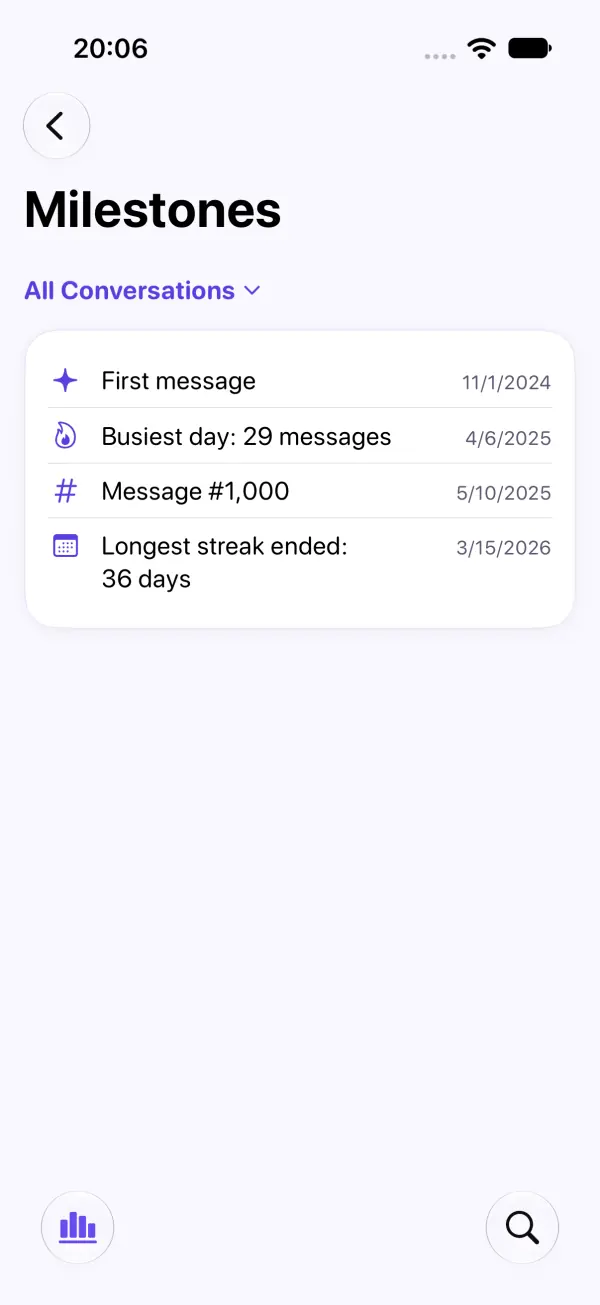
Milestones for the scope are listed by date: "First message", the days you reached 1,000, 10,000, 50,000, 100,000 messages and so on, the busiest day, and the day the longest streak ended.
Year in Review
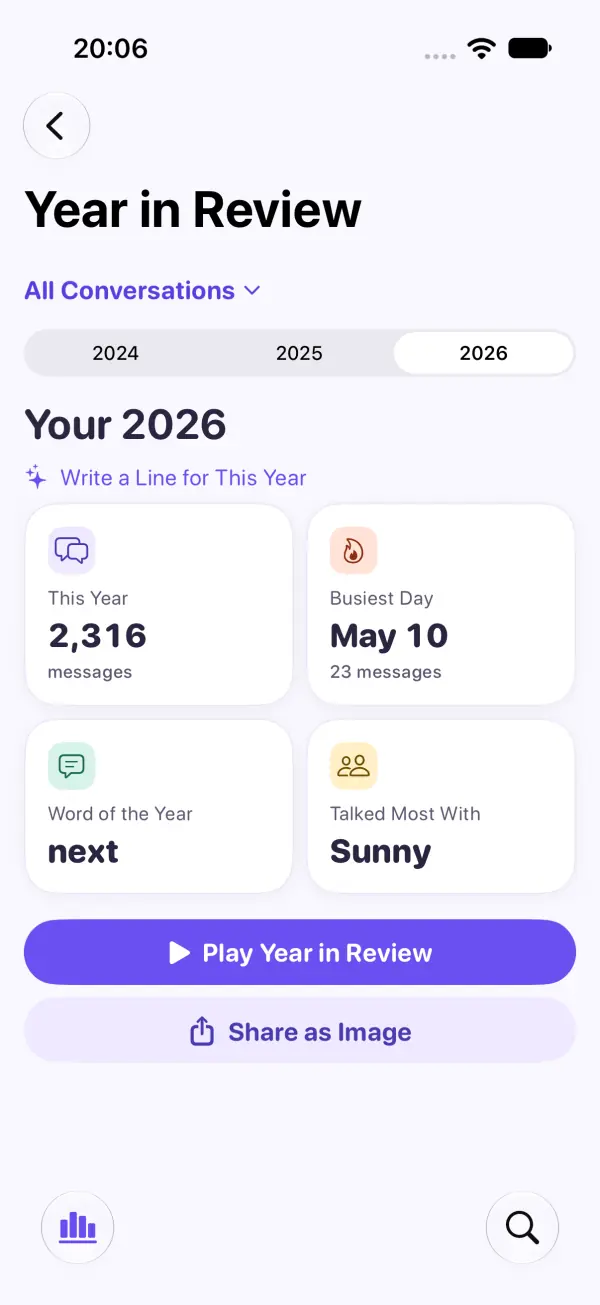
Choose a year in "Year" (up to the 4 most recent years with messages) to see "Your …" (that year) and:
- The number of messages "This Year"
- "Busiest Day"
- "Word of the Year": the top word in that year's Lexicon (hidden words don't count).
- "Talked Most With"
Below them are "Play Year in Review" and "Share as Image". On devices that support Apple Intelligence, you can also write a line for this year.
Writing a line for this year
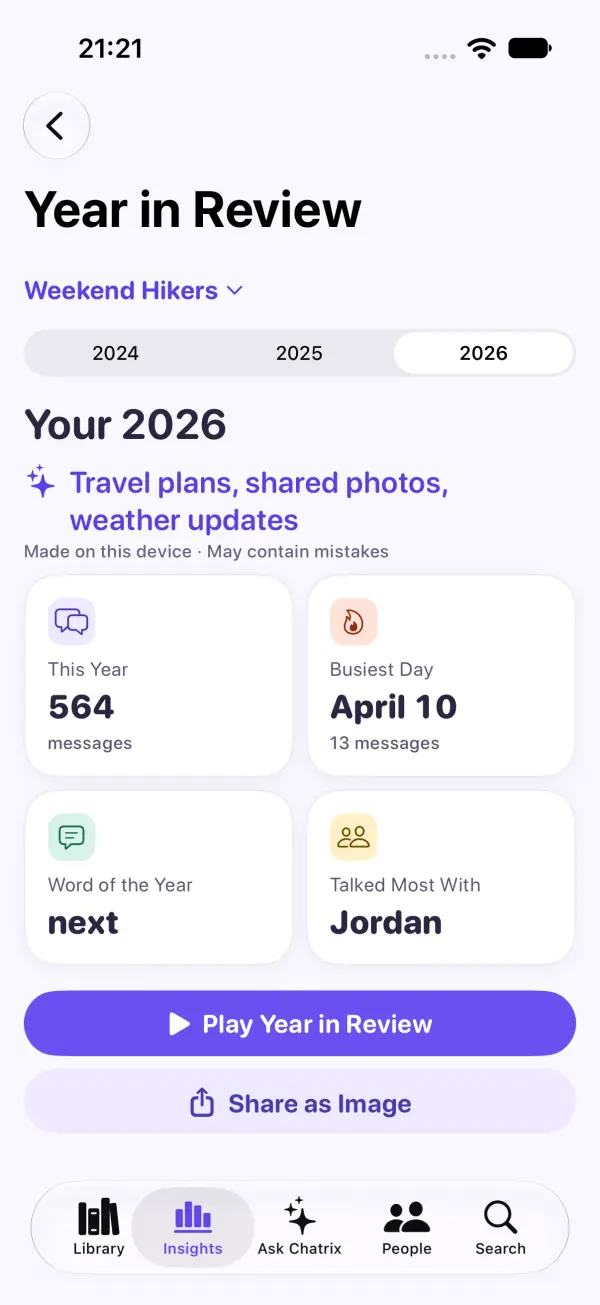
Below "Your …", select "Write a Line for This Year". Based on the parts with the most messages that year in the chosen scope, Apple Intelligence writes a tagline-like sentence that points out two or three themes you often talked about that year.
- This button appears only when Apple Intelligence is available and that year has parts with at least 5 messages.
- While writing, Chatrix first makes any missing part summaries ("Summarizing parts: … of …"), then shows "Writing the line…". Select "Stop" to stop.
- When it's done, the line appears below the year, marked "Made on this device · May contain mistakes". "All Conversations" and each conversation have their own line.
- Chatrix asks for a line without dates, numbers or people's names, and without describing feelings. If a name slips in anyway, the share card checks again. See "Share card" below.
Playing Year in Review
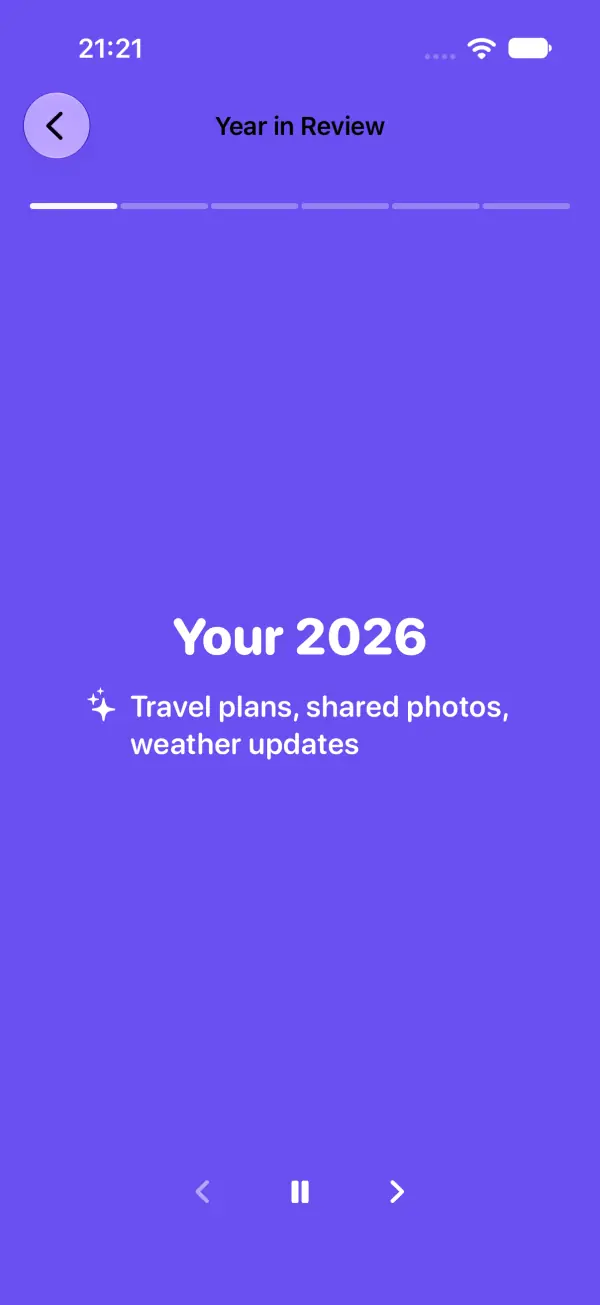
Select "Play Year in Review" to open a new page that plays one card at a time, like a slideshow:
- "Your …" (shown with the line if you've written one)
- The number of messages "This Year"
- "Busiest Day"
- "Word of the Year"
- "Talked Most With"
- "That was your …"
- Cards without data are skipped.
- Each card moves on to the next after about 3.5 seconds. Select the right half of the screen to go to the next card, or the left half to go back to the previous one. There are also previous, pause (it becomes play while paused) and next buttons at the bottom. On the last card, select "Replay" to start over.
- When VoiceOver is on, the cards don't advance automatically. When the system's Reduce Motion setting is on, the cards change with a simple fade.
- Apple Intelligence isn't needed. Without a line, the first card shows only the year.
- The playback shows the name of the person you talked with most. To share your Year in Review with others, use the share card, which hides names by default.
Share card
- In "Year in Review", select "Share as Image".
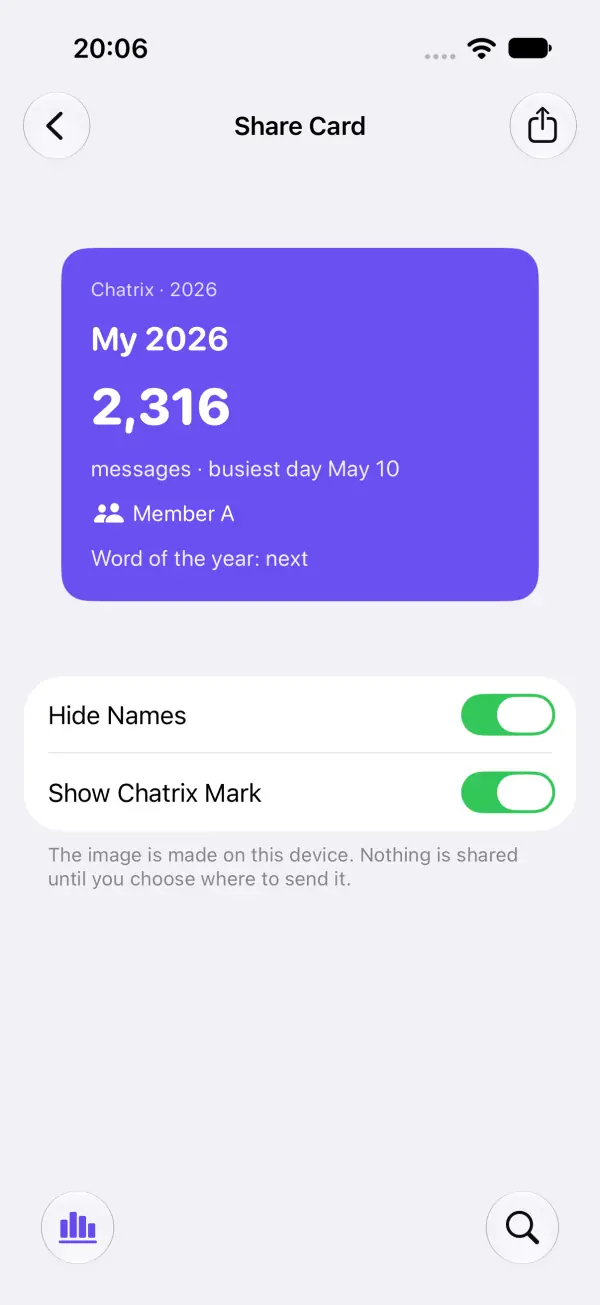
- On the "Share Card" page, check the preview and adjust it if needed:
- "Hide Names": on by default. People's names are replaced with "Member A", and conversation names are replaced with "This chat".
- "Show Conversation Name": available only when the scope is a single conversation.
- "Show Chatrix Mark"
- "Show the Year's Line": available only when you've written a line for this year. On by default.
- Select "Share" in the top-right corner, and use the system share sheet to send or save the image.
When "Hide Names" is on, the year's line is left off the card if it mentions any name in the scope (a person's name, alias, account or conversation name) or anything that looks like a person's name (as judged by the system's name recognition, for example a name that isn't in this scope). The note below says "The line mentions a name, so it's left out while names are hidden." The Word of the Year is also left off the card if it's a name in the scope or looks like a person's name.
The image is created on this device. Nothing is shared until you choose where to send it.
Recaps
"Recaps" uses Apple Intelligence to turn a conversation into recap cards by day, week, month or year. If this device doesn't support Apple Intelligence, Insights doesn't list this page.
- In "Insights", select "Recaps".
- Choose a conversation in the scope at the top. When the scope is "All Conversations", "Choose a Conversation" appears: "Recaps are made for one conversation at a time. Choose one above."
- Choose "Daily", "Weekly", "Monthly" or "Yearly" ("Monthly" by default). The periods that can be recapped are listed below from newest to oldest; periods without a recap yet show the number of parts ("… part").
- Select "Make Recap" on a period. "Making a Recap…" appears at the top: Chatrix first makes any missing part summaries ("Summarizing parts: … of …"), then shows "Writing the recap…". Select "Stop" to stop.
A finished recap card has:
- The period and the kind of recap, for example "Monthly Recap". For weekly recaps, the period is written as "Week of …". The day a week starts on follows your device's region settings.
- A title and 1 to 5 key points.
- The numbers next to the key points are sources: select one to open the conversation at the first message of that part.
- "Made on this device · May contain mistakes" at the bottom.
Other notes:
- Only parts with at least 5 messages are recapped. If the conversation has no such parts, "Nothing to Recap" appears.
- For long periods (such as a year), the recap focuses on the parts with the most messages in that period.
- Recaps are saved, so they appear right away the next time you open them. If the parts in that period change (for example, importing again adds messages), make the recap again.
- While a recap is being made, iPhone and iPad don't lock the screen automatically; leaving the page stops it. If making a recap fails, the reason appears below the period. See "Apple Intelligence messages".
- When Apple Intelligence can't be used (for example, it isn't turned on), the reason appears at the top of the page, and you can only view recaps that were already made.

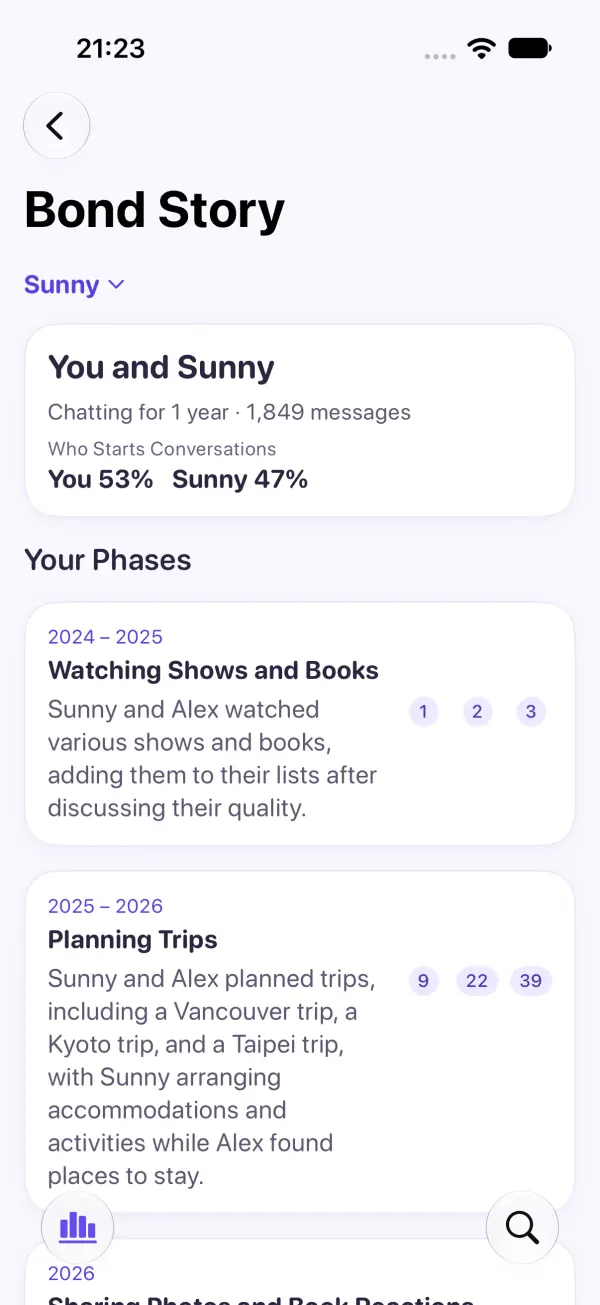
Bond Story
"Bond Story" traces how your interactions with the other person changed in a one-on-one conversation, and works only for one-on-one conversations. If this device doesn't support Apple Intelligence, Insights doesn't list this page.
- In "Insights", select "Bond Story".
- Choose a one-on-one conversation in the scope at the top. If "All Conversations" or a group is chosen, "Choose a One-on-One Chat" appears: "Bond Story is for one-on-one conversations. Choose one above."
- At the top are "You and …" and statistics calculated by Chatrix (without Apple Intelligence):
- How long you've been chatting and the number of messages, for example "Chatting for … year · … message".
- "Who Starts Conversations": who spoke first in each part of the conversation, shown as percentages. You appear as "You".
- In "Your Phases", select "Make Bond Story". Based on the part summaries, Apple Intelligence divides your conversation into 2 to 5 phases in time order. "Writing Your Bond Story…" appears at the top: Chatrix first makes any missing part summaries, then shows "Putting the phases together…". Select "Stop" to stop.
Each phase has a year, a title and one sentence. The numbers next to it are sources: select one to open the conversation at the first message of that part.
- A phase's year is based on the parts it cites as sources.
- It describes only what you talked about and did together, not anyone's feelings. Below it: "Made by Apple Intelligence on this device. It only describes how your conversations changed and never guesses anyone's health, feelings, or private traits."
- At least two parts with 5 or more messages are needed. If there aren't enough, "Bond Story needs at least two parts of the conversation with 5 or more messages." appears.
- A finished Bond Story is saved. If the parts of the conversation change, make it again.