iPad and Mac
- This guide covers version 1.1 (32) for iPhone and iPad, currently available on the App Store. For what's new in each version, see Release notes.
- The Mac version is coming soon. The Mac instructions in this guide are based on the upcoming Mac version (1.0).
Three-column layout
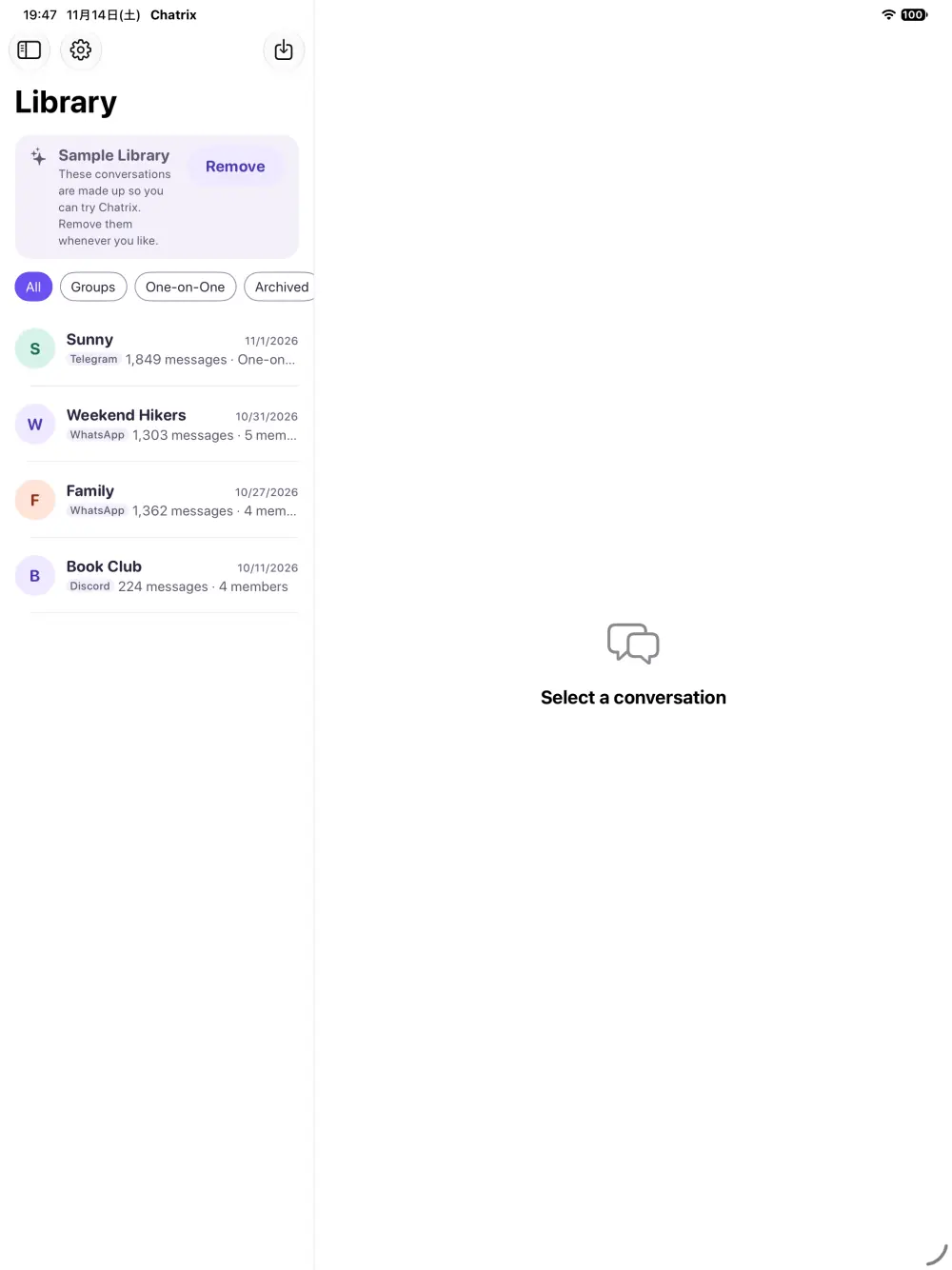
On iPad and Mac, Chatrix has three columns (on iPad in a narrower Split View, it uses a tab bar like iPhone instead):
| Column | What it shows |
|---|---|
| Sidebar | "Library", "Insights", "Ask Chatrix", "People" and "Search". |
| Middle column (list) | The list for what's selected in the sidebar: conversations, the Insights pages, people or search results. When "Ask Chatrix" is selected, it shows the questions and answers. |
| Right (content) | The selected conversation, Insights page, person, or the context of a search result or an Ask Chatrix source. When nothing is selected, a prompt such as "Select a conversation" appears. |
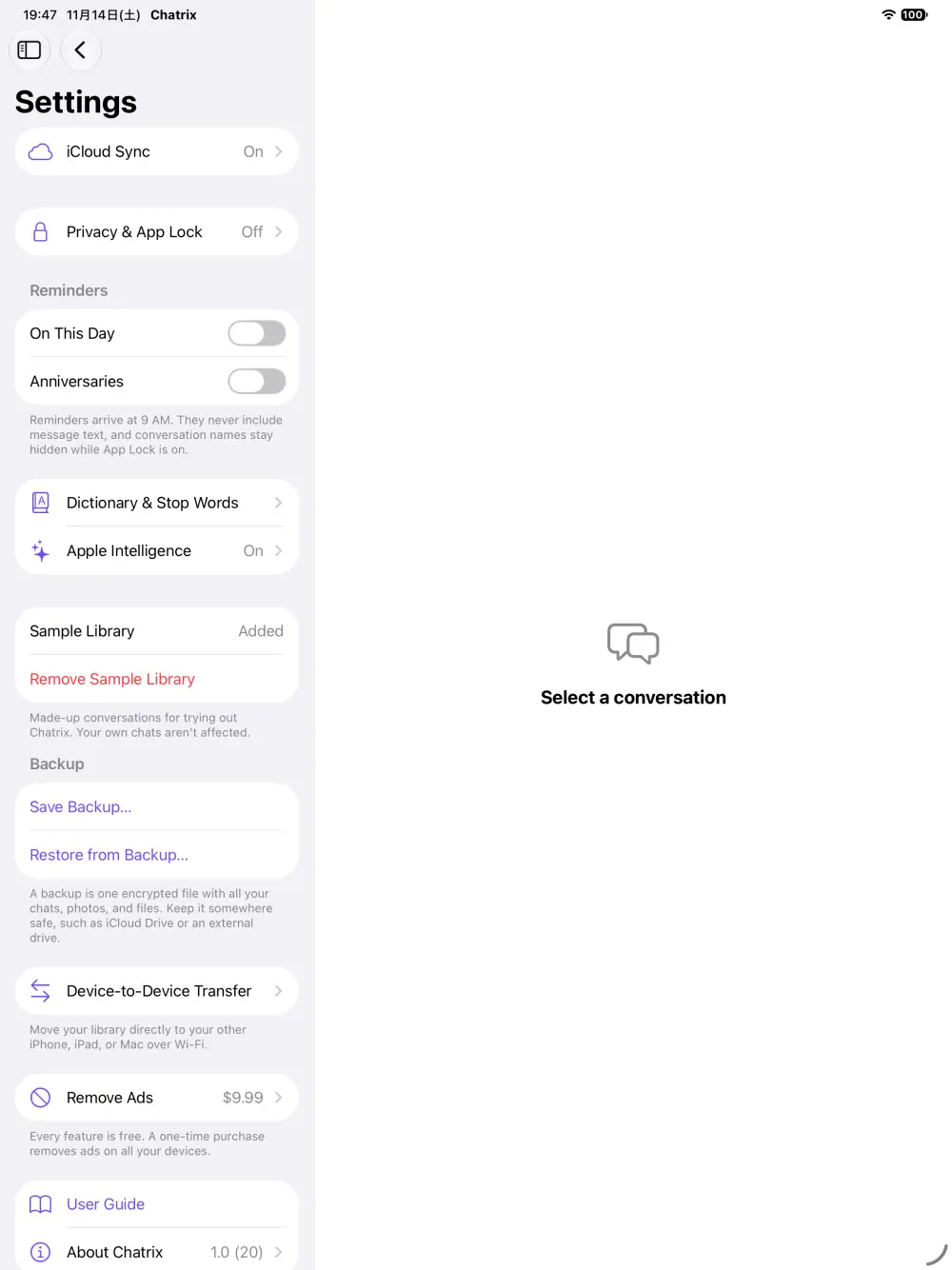
- Pages opened from the list (importing, Settings on iPad, the confirmation for removing the sample library, Possible Matches, "About Ads" on iPad) open in the middle column, and the right side keeps showing what was selected.
- Pages opened from the content (Conversation Info, Jump to Date, merging and splitting people and so on) open on the right.
- Every page has a back button; going back cancels.
- "Ask Chatrix": the questions and answers and "History" are in the middle column. Select a source in an answer to see that message's context on the right; until you select one, "Select a Source" appears. See "Ask Chatrix".
In portrait orientation on iPad, the sidebar is hidden. Select the sidebar button in the top-left corner to show it.

Keyboard shortcuts
These work on Mac and on iPad with a keyboard:
| Shortcut | Action |
|---|---|
| ⌘O | "Import Chat History…" |
| ⌘1 | Switch to "Library" |
| ⌘2 | Switch to "Insights" |
| ⌘3 | Switch to "Ask Chatrix" |
| ⌘4 | Switch to "People" |
| ⌘5 | Switch to "Search" |
| ⌥⌘F | "Search Chats" (switches to "Search") |
| ⌘F | In an open conversation: "Search This Conversation" |
| ⌘J | In an open conversation: "Jump to Date" |
| ⌘I | In an open conversation: "Conversation Info" |
| ⌃⌘L | When App Lock is on: "Lock Chatrix" (see "Locking right away") |
| ⌘, | Mac: Open Settings |
Menu bar
| Menu | Commands |
|---|---|
| "File" | "Import Chat History…" (⌘O) |
| View | "Library", "Insights", "Ask Chatrix", "People", "Search" (⌘1 to ⌘5), and "Search Chats" (⌥⌘F) |
| "Chatrix" (Mac) | "Settings…" (⌘,), "Lock Chatrix" (⌃⌘L, available only when App Lock is on) |
| "Help" (iPad) | "Chatrix User Guide" (opens the guide's home page in your browser), "Report a Bug" (opens the bug reports board on the YUCTS Forum) |
Drag and drop
- Importing: Drag an export file or exported folder (such as a Telegram export folder) onto the conversation list in "Library" to start importing. See "Importing Chats".
- Filling in files: In a conversation, drag a photo or file onto a "Not in the export" placeholder to fill it in. See "Filling in one file".
Right-clicking
On Mac, options that appear when you touch and hold on iPhone and iPad appear when you right-click instead (or Control-click), for example:
- Messages: "Copy Text" and "Copy Link to Message".
- Attachments that already have a file: "Replace with Photo…" and "Replace with File…".
- Items in the inbox: "Remove from Inbox".
The Mac Settings window
On Mac, Settings is in a separate window (choose "Settings…" from the "Chatrix" menu in the menu bar, or press ⌘,). It has mostly the same content as Settings on iPhone and iPad. See "Settings and About". Pages in the window, such as Backup and iCloud Sync, also open on a new page, and you use the back button to return to the previous page.
- Mac doesn't have ads, so there's no "Ad Privacy Options" or "Ad Tracking"; there's "YUCTS Suggestions" instead. See "YUCTS Suggestions (Mac)".
- When Chatrix is locked by App Lock, the Settings window is locked too, and you need to unlock it first.
- Mac doesn't have "Device-to-Device Transfer". To move your chat library to or from a Mac, use iCloud sync or a backup. See "Mac".
App Lock on Mac
On Mac, the screen is covered only when the Chatrix window is hidden or minimized to the Dock; it isn't covered if you just switch to another app. When the display turns off (for example, when the Mac goes to sleep), you log out or you switch users, Chatrix locks right away.
- To lock it right away, choose "Lock Chatrix" from the "Chatrix" menu in the menu bar, or press ⌃⌘L. See "Locking right away".
- While Chatrix is locked, the window title shows only Chatrix, not the names of conversations or people.
- The Settings window is locked too.
For details, see "Privacy & App Lock".