Library
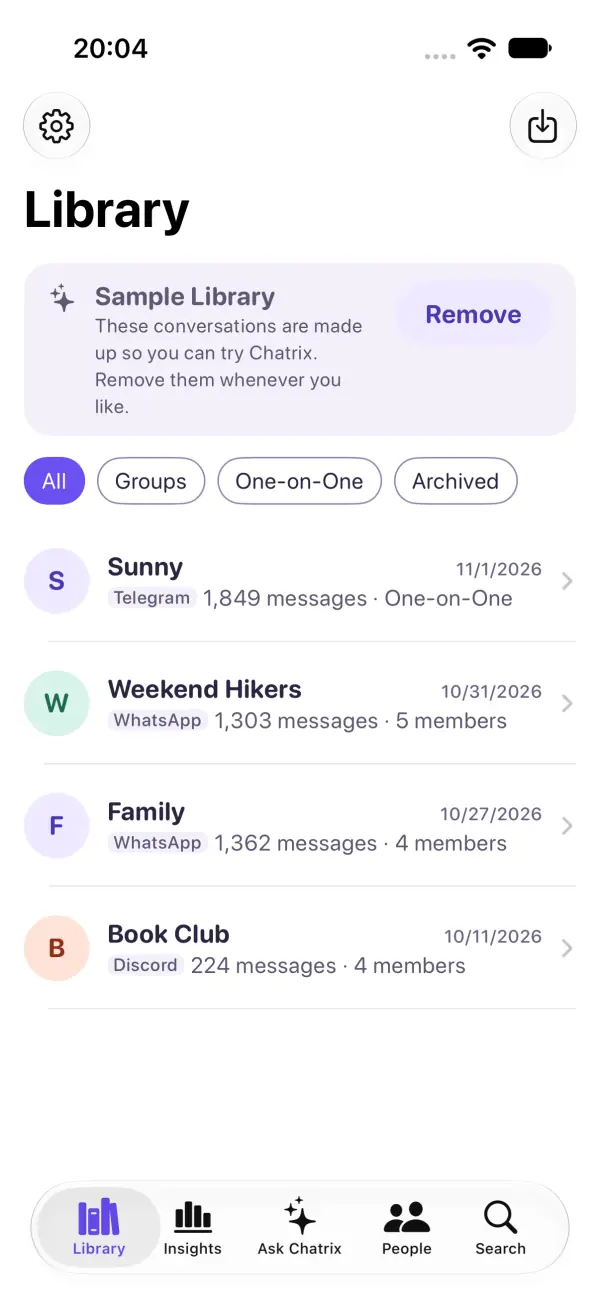
"Library" lists every conversation you've imported. On iPhone, it's the first tab; on iPad and Mac, select "Library" in the sidebar, and the list appears in the middle column (see "iPad and Mac").
Conversation list
- Pinned conversations come first and show "Pinned" and a pin; the others are sorted by the time of their last message, newest first.
- Each row shows the conversation's name, which app it came from and the number of messages, plus the number of members for a group or "One-on-One". The date of the last message is on the right.
- Select a conversation to open it. See "Reading Conversations".
- On iPhone and iPad, you can pull down to refresh.
- "Import Chat History" in the top-right corner imports new conversations. See "Importing Chats". On iPhone and iPad, "Settings" (the gear icon) in the top-left corner opens Settings.
When you don't have any conversations yet, "Bring in your first conversation" appears in the middle of the screen, and you can select "Import Chat History" or "Browse Sample Library".
Banners at the top of the list
| Banner | What it means |
|---|---|
| "… file in your inbox" | There are files shared from other apps that haven't been imported yet. Select "Import" to start importing. See "Inbox". |
| "Sample Library" | Your chat library contains sample conversations. Select "Remove" to remove them. See "Removing the sample library". |
| "Update Available" | A new version of Chatrix is available on the App Store. Select "Update Chatrix" to go to the App Store, or select "Not Now"; you won't be reminded about the same version again. See "'Update Required' or 'Update Available' appears". |
Filters
Select a filter at the top of the list:
| Filter | Shows |
|---|---|
| "All" | All conversations that aren't archived. |
| "Groups" | Groups and channels that aren't archived. |
| "One-on-One" | One-on-one conversations that aren't archived. |
| "Archived" | Archived conversations. |
Pinning a conversation
Pin the conversations you open often so they stay at the top of the list.
- In the conversation list, swipe a conversation to the right (iPhone, iPad), or touch and hold it (on Mac, right-click it), then select "Pin Conversation".
- You can also open the conversation, go to "Conversation Info", and select "Pin Conversation".
- For a pinned conversation, the same place shows "Unpin Conversation".
- When iCloud sync is on, pins sync to your other devices too.
Archiving a conversation
Archived conversations don't appear in "All", "Groups" or "One-on-One", but everything in them is still there: you can search them, and you can find them in "Archived".
- Open the conversation and select "Conversation Info" (ⓘ).
- Select "Archive Conversation".
To unarchive, open the conversation in "Archived", go to "Conversation Info" and select "Unarchive Conversation". If archiving fails, an error code appears at the top of "Conversation Info". Select "OK" to dismiss it.
Deleting a conversation
- Open the conversation and select "Conversation Info" (ⓘ).
- Select "Delete Conversation…".
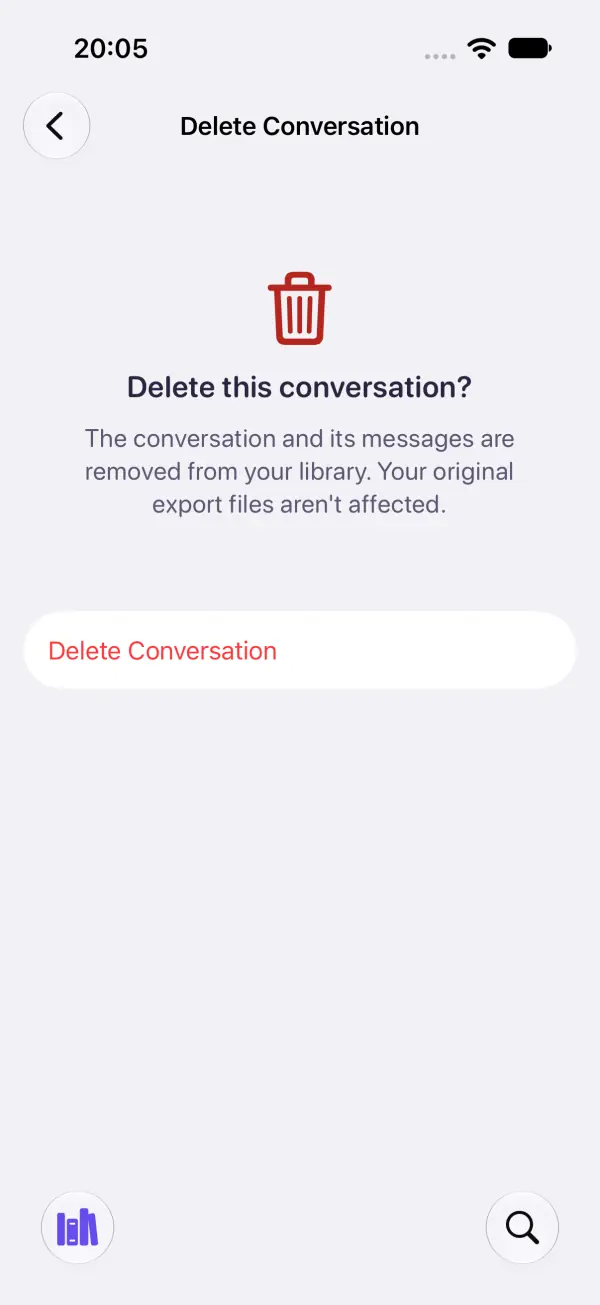
- On the "Delete this conversation?" page, select "Delete Conversation". To cancel, just go back to the previous page.
The conversation and its messages are removed from your chat library. The original export file isn't affected. After deleting, you return to the library.
- When iCloud sync is on, the conversation is also deleted on your other devices after they sync.
- If you import the same conversation again later, it reappears in your chat library.
- To remove sample conversations, use "Removing the sample library", which removes all of them at once.