People
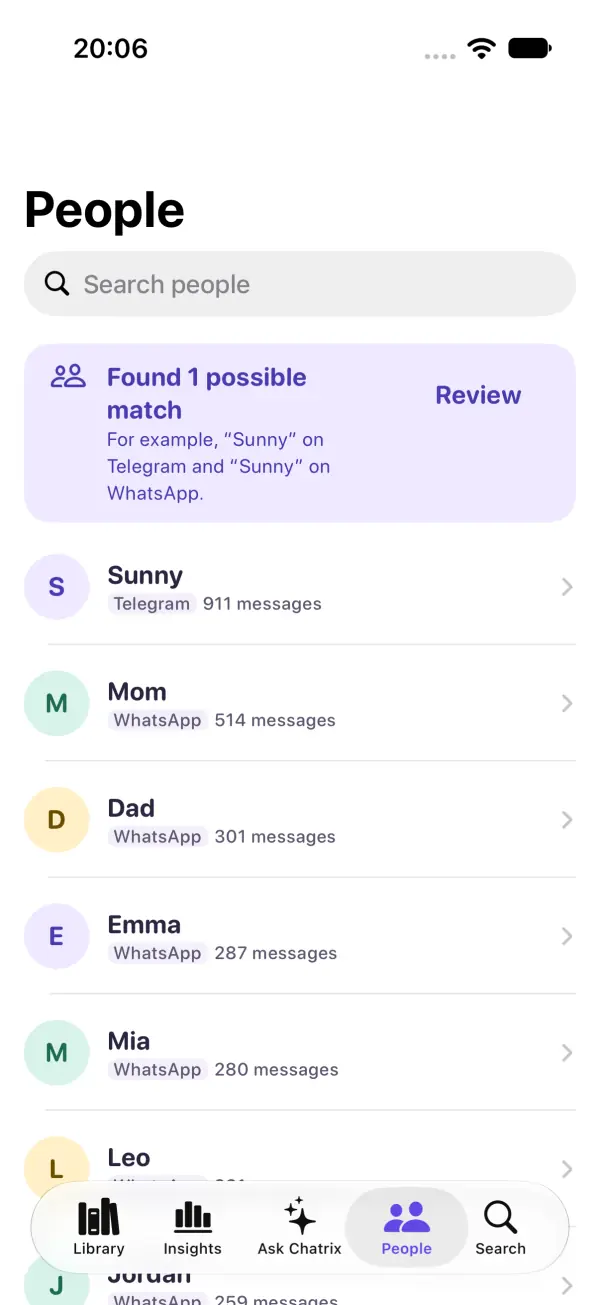
"People" lists everyone who appears in the conversations you've imported (not including you), sorted by number of messages from most to fewest.
- iPhone: Select "People" in the tab bar.
- iPad and Mac: Select "People" in the sidebar. The list of people is in the middle column, and when you select someone, their details appear on the right.
Each row shows the person's name, which apps they appear in and their number of messages. Use "Search people" at the top to filter by name or other names.
A person's page
Select someone to open their page:
- Their name and "Also known as …", and which apps they appear in.
- "Messages", "Conversations" and "Most Active".
- "Names": the names this person has used in each app, and the years they appeared.
- "Appears In": every conversation this person appears in, and how many messages they sent in it. Select a conversation to open it.
- "Merge with Someone…" and "Split…" (appears only when there are two or more names).

Changing names and adding notes
On iPhone and iPad, you can change the name a person is shown with in Chatrix, or add a note. Open "Name and Note" from either of these places:
- "Edit" in the top-right corner of the person's page.
- "People" in a conversation's "Conversation Info": it lists the people who sent messages in that conversation (not including you), sorted by number of messages, with the description "Choose a person to change the name shown in Chatrix or add a note."
On the "Name and Note" page:
- "Name": the name from the export appears in gray. "Leave empty to use the name from the export. Your original files aren't changed."
- "Note": you can write several lines. "Notes stay in your library and sync to your other devices when iCloud sync is on. They aren't included when you export a conversation."
- When you're done, select "Save" in the top-right corner.
The new name is used in reading, Insights, search and exports. For a merged person, every name is replaced with the new one. When there's a note, the person's page has an extra "Note" section. On a synced device that still has version 1.0, the new name appears but the note doesn't.
Possible matches
The same friend may appear in different apps, such as LINE and Telegram. When people from different apps have the same name, Chatrix suggests merging them:
- When "Found … possible match" appears at the top of "People", select "Review".
- The "Possible Matches" page lists them one group at a time. If they're the same person, select "Merge…" for that group, then see "Merging people" below.
After merging, you return to the "Possible Matches" page; when there are no more suggestions, it goes back automatically.

Merging people
You can also merge people yourself, beyond the suggestions:
- Open one person's page and select "Merge with Someone…".
- On the "Merge with…" page, find the other person and select them (you can use the search field at the top).
- On the "Merge People" page, choose a name in "Name to Show", or choose "Custom Name…" and type a name.
- Select "Merge" in the top-right corner. You can't go back while merging.
Merging only affects people and statistics in Chatrix; it doesn't change the original messages, and you can split them at any time. If merging fails, an error code appears on the page.
Splitting
To separate names that were merged together:
- Open the person's page and select "Split…".
- The "Split someone out of this person?" page lists each of this person's names (with the app it came from). Select the one to split out.
The name you split out becomes a separate person again. Messages don't change; only how Chatrix groups people changes. If you split out the main name currently shown on the person's page, you return to the list of people afterward.