Privacy & App Lock
Your data
- No account needed: You don't need to sign up or sign in to use Chatrix.
- Processed on your device: Importing, search, insights, exporting and share cards all happen on your device. Summaries, recaps and Ask Chatrix also use Apple Intelligence on this device. See "Apple Intelligence and privacy".
- iCloud sync is off by default: When you turn it on, everything is encrypted on your device first and then stored in your own iCloud. See "iCloud Sync".
- Direct transfer between devices: Device-to-device transfer sends your data directly between your two devices with encryption, without going through any server.
- Ads never get your chats: iPhone and iPad have ads, but ads never read or receive your chats. Mac doesn't have ads. See "Ads and tracking" below.
- Spotlight doesn't show conversation names by default: Until you turn on "Show Conversation Names in Spotlight", Spotlight doesn't show your conversations. Even after you turn it on, only conversation names appear, without message content.
- Diagnostic files are up to you: For an export that can't be read, you can create a diagnostic file. It only describes the shape of the data, without names, messages or file names, and it's created only when you choose to share it. See "Diagnostic files".
- Reminders, widgets and Apple Watch don't contain message content, and they don't show conversation names when App Lock is on. See "Reminders and Widgets".
- Error codes don't contain chat content: An error code on the screen only indicates the kind of error.
- You can delete everything at any time: On iPhone and iPad, you can delete all data on this device at once. See "Deleting all data" below.
Turning on App Lock
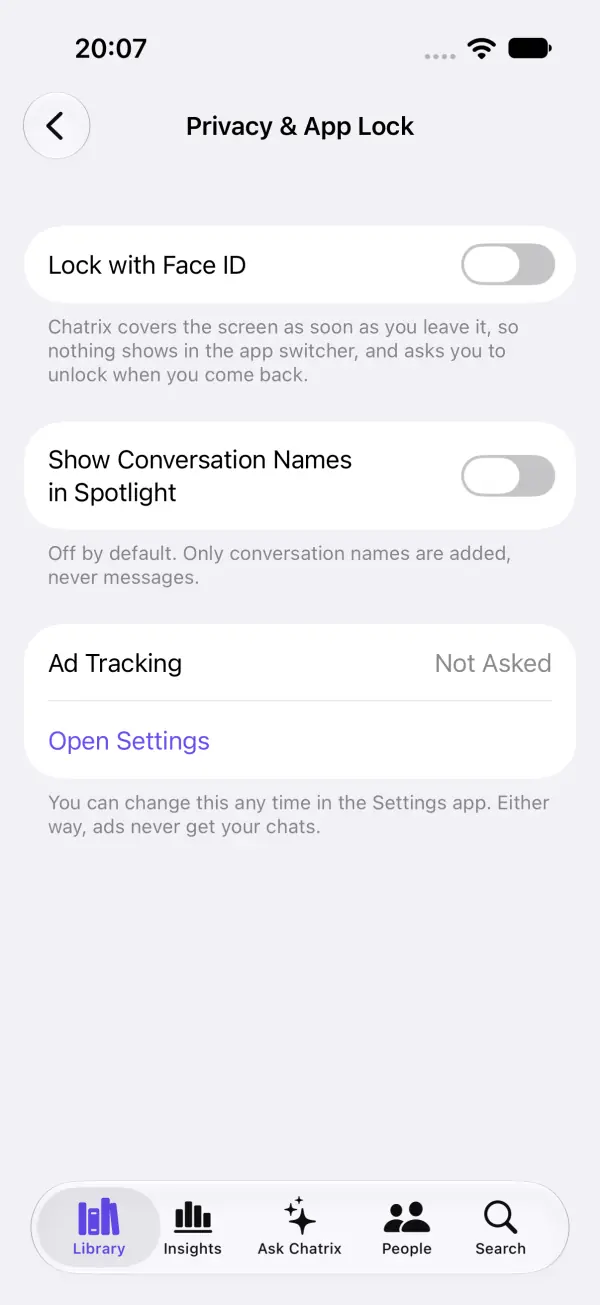
With App Lock on, Chatrix covers the screen as soon as you leave it, and you unlock it with Face ID, Touch ID, Optic ID or your passcode when you come back.
- Go to "Settings" › "Privacy & App Lock".
- Turn on the switch. The switch's name depends on the device:
| Device | Switch |
|---|---|
| With Face ID | "Lock with Face ID" |
| With Touch ID | "Lock with Touch ID" |
| With Optic ID | "Lock with Optic ID" |
| iPhone or iPad without biometrics | "Lock with Passcode" (device passcode) |
| Mac without Touch ID | "Lock with Password" (your Mac login password) |
- The system asks you to verify once, and App Lock turns on only after that succeeds.
- App Lock isn't available if the device doesn't have a passcode. "Set a device passcode to use App Lock." appears below it.
- You can also turn it on directly from the welcome pages the first time you use Chatrix. See "Suggestion to turn on App Lock".
- The App Lock setting is stored only on this device, so you need to turn it on separately on each device.
- When it's on, "Privacy & App Lock" in "Settings" shows the unlock method; when it's off, it shows "Off".
Covering the screen when you leave
- iPhone and iPad: The screen is covered as soon as you leave Chatrix (go to the Home Screen, switch to another app and so on), and the content can't be seen in the App Switcher either.
- Mac: The screen is covered when the Chatrix window is hidden or minimized to the Dock. It isn't covered if you just switch to another app and the window is still visible. When the Mac's display turns off (for example, when it goes to sleep), you log out or you switch users, Chatrix locks right away.
"When You Leave Chatrix" sets how long you can be away before you need to unlock again when you come back: "Immediately", "After 1 Minute", "After 5 Minutes" or "After 15 Minutes". If you come back within that time, the screen comes back right away without unlocking.
Locking right away
When App Lock is on, you can lock Chatrix right away without leaving it:
- Mac: Choose "Lock Chatrix" from the "Chatrix" menu in the menu bar, or press ⌃⌘L.
- iPad: With a keyboard connected, press ⌃⌘L.
After it locks, "Chatrix Is Locked" appears, and you select the button on the screen (for example, "Unlock with Face ID" or "Unlock") to verify. See "Unlocking" below. When App Lock is off, "Lock Chatrix" isn't available.
Unlocking
When you need to unlock, "Chatrix Is Locked" appears, and you're asked to verify with Face ID, Touch ID or Optic ID automatically.
- If verification is canceled or fails, select the button on the screen (for example, "Unlock with Face ID" or "Unlock") to try again.
- If biometrics aren't available, the system lets you enter your device passcode instead (on Mac, your login password).
- If you later remove the device passcode, App Lock turns off automatically.
Actions that ask you to verify first
When App Lock is on, the following actions first ask you to verify once with Face ID, Touch ID, Optic ID or your passcode, and continue only after that succeeds:
- Turning off App Lock.
- Saving a backup.
- Exporting a conversation.
- Sending your chat library to another device.
- Creating a new recovery key.
- Deleting all data.
Turning off App Lock
Go to "Settings" › "Privacy & App Lock" and turn off the switch. Before it turns off, you verify once with Face ID, Touch ID, Optic ID or your passcode.
Showing conversation names in Spotlight
When this is on, you can search for Chatrix conversation names in Spotlight on iPhone, iPad and Mac, and selecting a result opens that conversation.
- Go to "Settings" › "Privacy & App Lock".
- Turn on "Show Conversation Names in Spotlight".
- "Off by default. Only conversation names are added, never messages." Spotlight shows the conversation name and which app it's from.
- Archived conversations aren't added to Spotlight. When you import, delete or archive conversations, Spotlight is updated to match.
- When App Lock is on, Spotlight doesn't show any conversation names and this switch can't be used; "Turned off while App Lock is on." appears below it. If the switch was on before, it comes back on when you turn off App Lock.
- When you turn off the switch, Chatrix conversation names are removed from Spotlight.
- This setting is stored only on this device, so you need to turn it on separately on each device.
Deleting all data
On iPhone and iPad, you can delete all Chatrix data on this device at once. Go to "Settings" › "Privacy & App Lock" and select "Delete All Data" at the bottom (its description reads "Deletes every conversation, photo and setting on this device. You can also delete Chatrix's data in iCloud."). A confirmation page opens:
- The confirmation page explains "This deletes your library on this device: every conversation and message, photos and files, AI summaries and recaps, the share inbox and Chatrix's settings. It can't be undone." followed by "The encryption key in your keychain isn't deleted, because your other devices still use it to open their own copy. Once the data is gone, the key can't unlock anything."
- If you've used iCloud sync (sync is on, or it has synced successfully before), "What to Delete" appears:
- "This Device" (the default): "Your data in iCloud and on your other devices isn't affected."
- "This Device and iCloud": "Chatrix's data in your iCloud is deleted too. Your other devices keep their own copy and ask what to do the next time they sync." See "Chatrix data was deleted from iCloud".
- Turn on "I understand this can't be undone." (the note below it reads "To keep a copy, save a backup first in Settings."), then select the red "Delete All Data" button. If App Lock is on, you verify once first.
After the data is deleted, Chatrix starts again from the welcome pages; App Lock, reminders and "Show Conversation Names in Spotlight" are turned off, and background summarizing goes back to its default. Your "Remove Ads" purchase, your ad consent choices and the key in your keychain are kept.
When you include iCloud, Chatrix deletes the data in iCloud first. If that fails (for example, without a network connection), the data on this device isn't deleted either, and "Error code: …" appears below the button.
Your chat library in iCloud is still there. To get it back later, go to "Settings" › "iCloud Sync", turn on sync, and select "Download Library" on the "Use Your iCloud Library?" page. The key in your keychain is still there, so you don't need to enter your recovery key. If you import your own chats first, "iCloud Has Another Library" appears and you can't sync. See "Both devices already have chats".
The Mac version (1.0) doesn't have this feature yet.
Ads and tracking
Every feature in Chatrix is free, supported by ads.
- Ads appear only on iPhone and iPad. Mac doesn't have ads and doesn't ask about tracking. See "Mac: YUCTS Suggestions" below.
- Ads never read or receive your chats: when Chatrix requests an ad, it doesn't include any chat content, keywords or URLs.
- After you buy "Remove Ads", ads no longer appear on any of your devices. See "Remove Ads".
Where ads appear
Ads appear only in these three places, with at most one ad per screen:
- "Overview" in Insights: after the statistics cards.
- "Library": at the end of the conversation list.
- "Rhythm" in Insights: at the end of the page.
There are no ads in reading, search, Ask Chatrix, importing, People, Settings, the welcome pages or the lock screen, and none in widgets or on Apple Watch. Ads start to appear only after you've finished the welcome pages and your chat library has conversations (the sample library counts).
Before ads first appear
- In regions where consent is required, an ad consent form appears first.
- Next, the "About Ads" page opens: "Every feature in Chatrix is free, supported by ads." It lists "Ads never read or receive your chats", "No ads in reading, search, Ask Chatrix, and other private screens" and "A one-time purchase removes all ads".
- The page explains: "Next, your device asks whether Chatrix may track. If you allow it, ads are more relevant to you. If you don't, every feature still works." Select "Continue" (the only button on this page).
- In the system prompt, choose whether to allow Chatrix to track.
- The "About Ads" page appears only if the system hasn't asked about tracking yet, and not while an import is in progress.
- In regions where consent is required, if you don't give consent, no ads appear and you aren't asked about tracking.
- If you've already bought "Remove Ads", these pages don't appear and you aren't asked about tracking.
Ad tracking status
On iPhone and iPad, go to "Settings" › "Privacy & App Lock". "Ad Tracking" shows the current status:
| Status | What it means |
|---|---|
| "Allowed" | Chatrix is allowed to track. |
| "Not Allowed" | Tracking isn't allowed. |
| "Restricted" | Tracking is restricted on this device, for example by Screen Time or device management settings. |
| "Not Asked" | The system hasn't asked yet. |
To change it, select "Open Settings" and change it in the Settings app. "You can change this any time in the Settings app. Either way, ads never get your chats." After you buy "Remove Ads", this item no longer appears.
Ad Privacy Options
In regions where consent is required, "Ad Privacy Options" appears in "Settings" on iPhone and iPad. Select it to open the ad consent form, where you can change or withdraw your consent at any time. It doesn't appear after you buy "Remove Ads".
Mac: YUCTS Suggestions
Mac doesn't have ads. Instead, "Overview" (after the statistics cards) and "Rhythm" (at the end of the page) in Insights show a "YUCTS Suggestions" card that introduces other YUCTS apps.
- Select "View in App Store" or "Learn More" to open the suggestion.
- Select × on the card ("Hide This Suggestion"), and that suggestion no longer appears on this Mac.
- "Suggestions are downloaded from chatrix.yucts.com without sending any identifying information. They no longer appear after you buy Remove Ads."
- If you don't want to see suggestions, you can turn them off in Settings. See "YUCTS Suggestions".
- When there are no suggestions, the card doesn't appear.