Reading Conversations
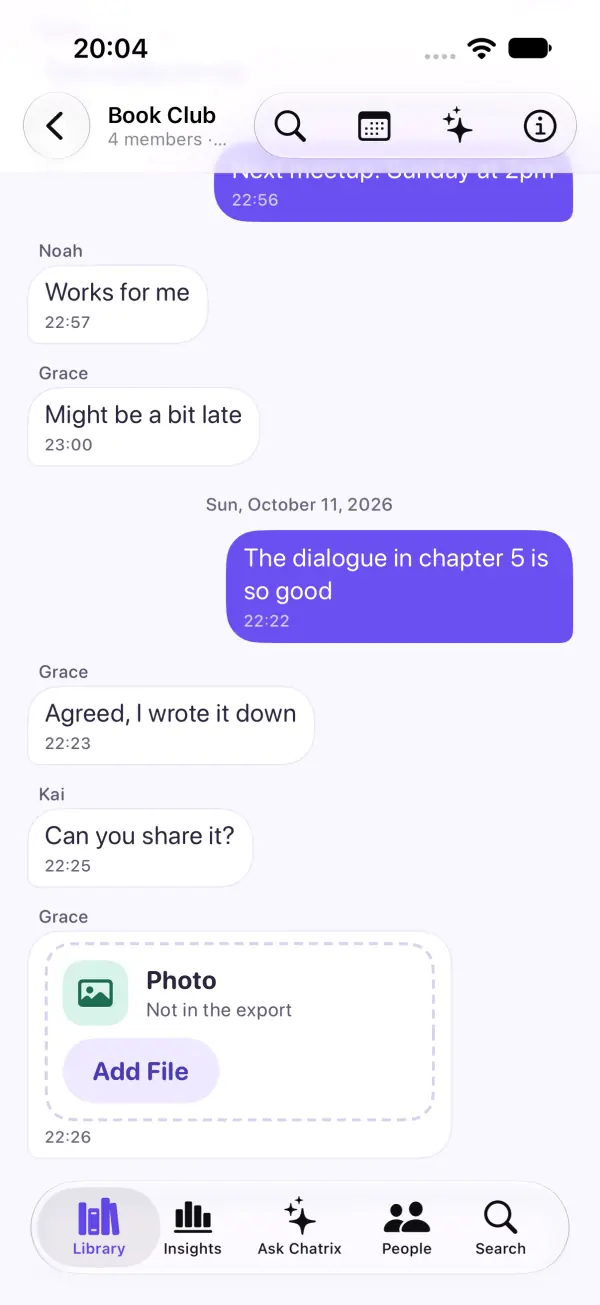
Select a conversation in "Library" to open it. The conversation starts at the newest messages, and earlier messages keep loading as you scroll up.
The conversation screen
- Your messages are on the right and everyone else's are on the left. Which one is you is decided when you import (see "Which one is you?").
- The date appears above the first message of each day. In groups, the sender's name appears above their messages.
- System messages, such as someone joining the group, a name change or a call, appear centered in small text.
- Below the title, you can see which app the conversation came from; for groups, the number of members appears too.
- There are four buttons in the top-right corner: "Search This Conversation" (magnifying glass), "Jump to Date" (calendar), "Summaries" (✨) and "Conversation Info" (ⓘ). "Summaries" appears only on devices that support Apple Intelligence; other devices have just three buttons.
- For parts that already have a summary, a part divider appears before the part's first message: the time, plus ✨ and a one-line summary. See "Summaries".
Copying text and links
Touch and hold a message (on Mac, right-click it) to choose:
- "Copy Text": copies the message's text. You can also select part of the text in a message directly.
- "Copy Link to Message": copies a link that points to this message. Opening the link on a device with Chatrix installed opens Chatrix and jumps to the message.
Searching within a conversation
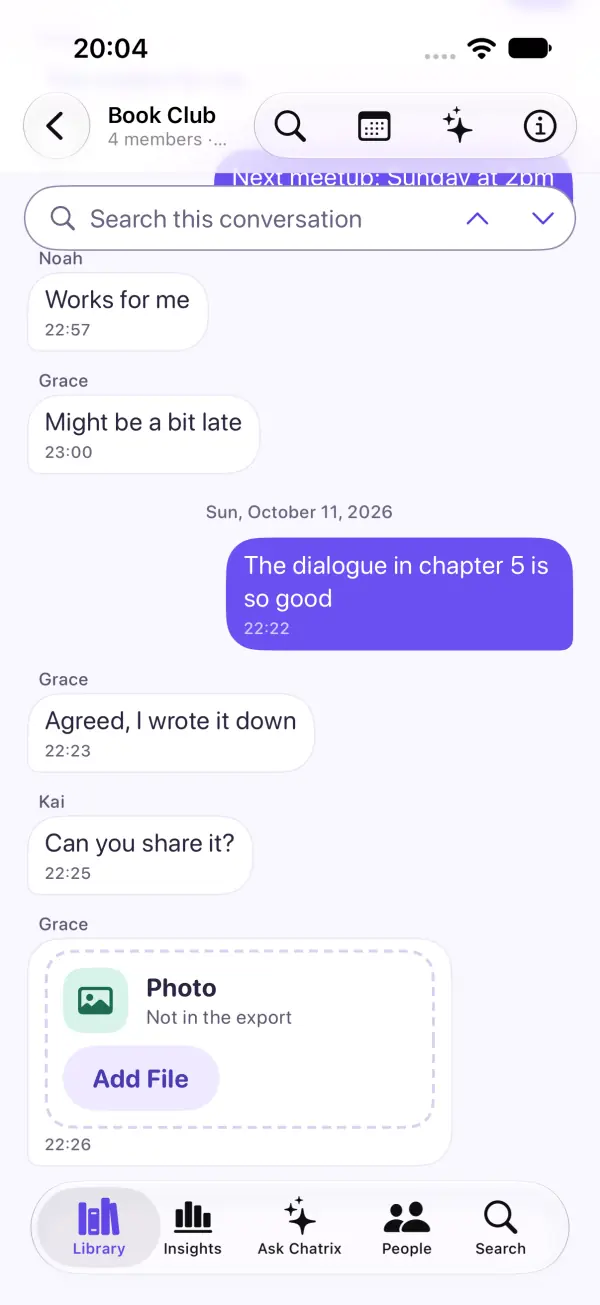
- Select "Search This Conversation" (magnifying glass; on Mac or an iPad keyboard, press ⌘F).
- Type what you're looking for in "Search this conversation". The search starts when you pause typing.
- The conversation jumps to the newest result and highlights your search terms; the search bar shows which result you're on and how many there are.
- Select "Previous Result" or "Next Result" to move between results. At the end, it wraps around to the other end. Pressing Return jumps to the previous (earlier) result.
Select the magnifying glass again to close the search bar. A conversation shows up to the newest 1,000 results. To search every conversation, use "Search".
Jumping to a date
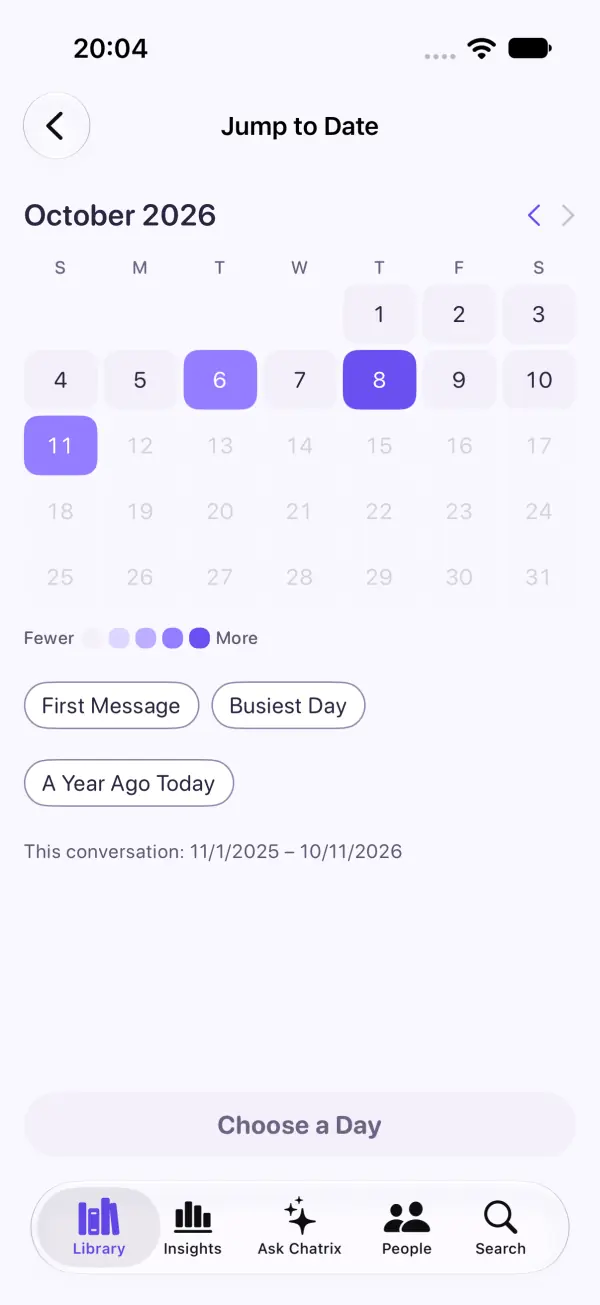
- Select "Jump to Date" (calendar; keyboard ⌘J).
- Choose a day on the calendar. Darker days have more messages; days outside the conversation's time span can't be chosen. Use "Previous Month" and "Next Month" to change months.
- You can also select a shortcut: "First Message", "Busiest Day" or "A Year Ago Today" (shown only if that day is within the conversation's time span).
- Select "Jump to …" at the bottom.
When you return to the conversation, it jumps to the first message of that day (or the nearest later day) and briefly highlights it. "This conversation: … – …" below the calendar is the conversation's time span.
Summaries
On devices that support Apple Intelligence, selecting "Summaries" (✨) opens the "Summaries" page, where Apple Intelligence on this device writes a title, summary, topics and tone for each part of the conversation.
- Select "Summarize" below a part to summarize one part at a time, or select "Summarize All" in the top-right corner to summarize all the remaining parts at once.
- Select a part to go back to the conversation, scrolled to that part's first message.
- For parts that already have a summary, a part divider appears in the conversation before the part's first message: the time on top, and below it ✨ and the title of that part's summary, like a one-line summary. Parts without a summary don't show a divider.
For details, see "Part summaries" and "One-line summaries while reading".
Conversation Info
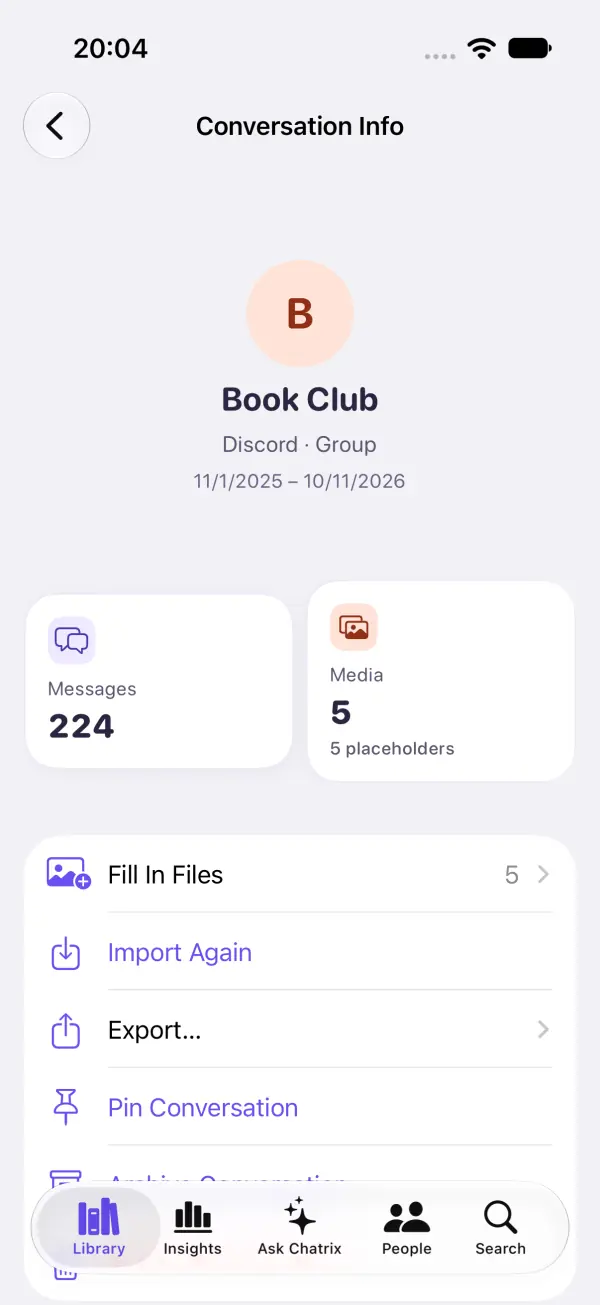
Selecting "Conversation Info" (ⓘ; keyboard ⌘I) opens a new page:
- The conversation's name, which app it came from, its type ("One-on-One", "Group" or "Channel") and its time span.
- "Conversation Name" (iPhone, iPad): change the name this conversation is shown with in Chatrix. The gray text in "Name" is the name from the export: "Leave empty to use the name from the export. Your original files aren't changed." When you're done, select "Save". The new name syncs to your other devices.
- "People" (iPhone, iPad): the people who sent messages in this conversation. Select someone to change their name or add a note. See "Changing names and adding notes".
- "Choose Photo": choose a picture from your photo library to use as this conversation's avatar. It appears in the library list and at the top of Conversation Info; without a photo, the first character of the name appears. Once you've chosen one, the button changes to "Change Photo", and "Remove Photo" is added. The photo is made smaller and saved without information such as where it was taken, and it's included in iCloud sync, backups and device-to-device transfers.
- The number of "Messages" and "Media". If there are placeholders that haven't been filled in, "… placeholder" appears.
- "Fill In Files" (appears only when there are placeholders). See "Filling in several files at once".
- "Import Again": opens the import page. See "Importing again doesn't create duplicates".
- "Export…": saves this conversation as a file. See "Exporting a conversation".
- "Pin Conversation" or "Unpin Conversation". See "Pinning a conversation".
- "Archive Conversation" or "Unarchive Conversation". See "Archiving a conversation".
- "Delete Conversation…". See "Deleting a conversation".
When you come back from "Conversation Info" or "Jump to Date", the conversation stays where you were.
Exporting a conversation
Save a conversation as a file, for example to print it, keep it, or open it in another app.
- Open the conversation, select "Conversation Info" (ⓘ), then select "Export…".
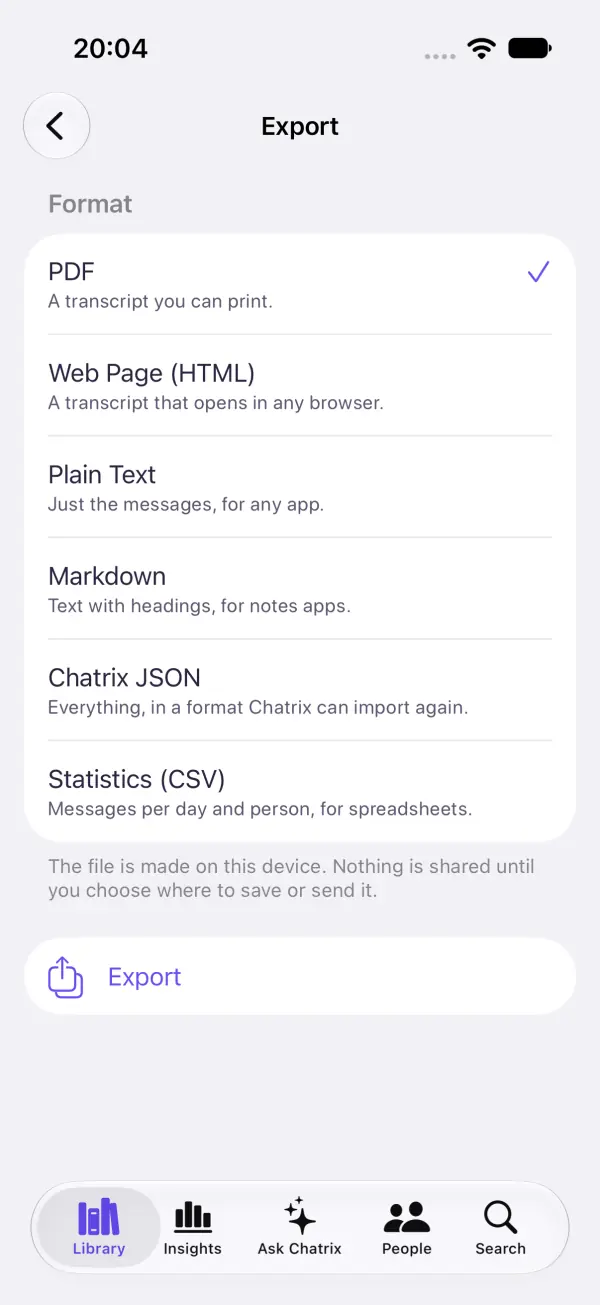
- Choose a format in "Format":
| Format | What you get |
|---|---|
| "PDF" | "A transcript you can print." The paper size is A4 (Letter in the US and Canada), with the conversation name and page number at the bottom of each page. |
| "Web Page (HTML)" | "A transcript that opens in any browser." It's a single file that doesn't load any external resources; your messages are on the right. |
| "Plain Text" | "Just the messages, for any app." Grouped by date, with one line per message: the time, name and content. |
| "Markdown" | "Text with headings, for notes apps." Dates are headings and names are bold. |
| "Chatrix JSON" | "Everything, in a format Chatrix can import again." The format is the Chatrix Universal Format. |
| "Statistics (CSV)" | "Messages per day and person, for spreadsheets." One row per day per person: "Date", "Person", "Messages", "Characters", "Media" and "Links". |
- Select "Export". If App Lock is on, you first verify with Face ID, Touch ID, Optic ID or your passcode.
- While the file is being made, "Exporting…" and the progress appear, and you can't go back. Select "Stop" to cancel.
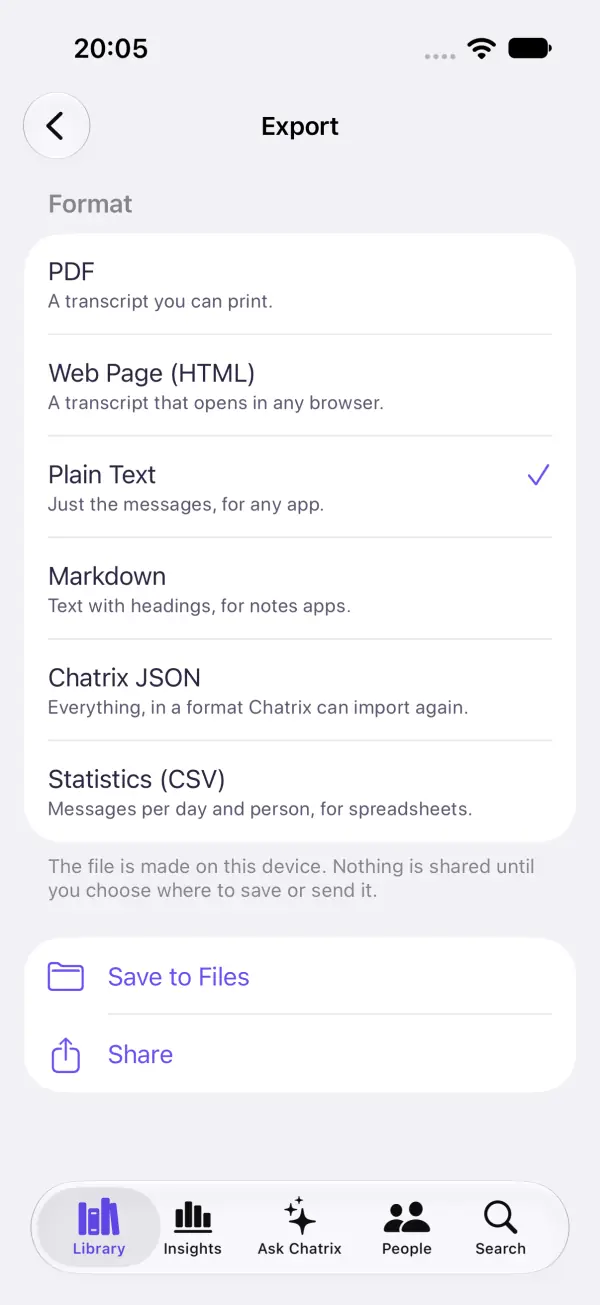
- When it's done, select "Save to Files" to choose where to save it, or select "Share" to send it with the system share sheet.
- "The file is made on this device. Nothing is shared until you choose where to save or send it."
- The file name is the conversation name followed by today's date. If you change the format or leave the page, you need to export again.
- Photos, videos and other files aren't included in the export; they're written only as words like [Photo]. To keep your whole chat library, use a backup.
- Long conversations take a while, and PDF takes the longest.
- If the export fails, an error code appears on this page. See "Error codes".
Photos and files
- Photos, GIFs, stickers and videos that have files show thumbnails; voice messages, audio and other files show the file name and the length or size.
- Select an attachment to open it full screen.
- Touch and hold an attachment that already has a file (on Mac, right-click it) and choose "Replace with Photo…" or "Replace with File…" to replace it with another file.
Placeholders
Many chat apps don't include photos or files when they export, and only leave words like [Photo]. Chatrix shows these as placeholders labeled "Not in the export". You can fill in the original files yourself.
Filling in files
Files you fill in are copied into Chatrix, and you can always replace them later. When iCloud sync is on, files you fill in also sync to your other devices.
Filling in one file
- Select "Add File" on the placeholder.
- Choose "Choose from Photos" (only for photos, videos and GIFs) or "Choose a File", then choose the file to fill in.
On iPad and Mac, you can also drag a file straight onto the placeholder. If filling in fails, an error code appears at the bottom of the screen. Select "OK" to dismiss it.
Filling in several files at once
- Open the conversation, select "Conversation Info", then select "Fill In Files".
- Select "Choose Photos" (up to 500 at a time) or "Choose Files", and choose a batch of photos or files that may belong to this conversation.
- Chatrix finds the most likely file for each placeholder based on file names, dates and order in file names, and when the photo was taken or the file was created. It shows how many are "High confidence", "Needs review" and "Not found".
Each match lists the file name and the reason for the match:
| Reason | Confidence |
|---|---|
| "Same file name" | High |
| "Date and order in the file name match" | High or needs review |
| Taken a few minutes before the message | Needs review |
- Select "Accept" for each match, or select "Accept All …" at the bottom to accept every "High confidence" match at once. After you accept, "Added. You can replace it anytime." appears.
If there are no placeholders, this page shows "No placeholders to fill". When you later import an export that includes photos and files, placeholders are filled in automatically too (see "Importing again doesn't create duplicates").