Settings and About
Opening Settings
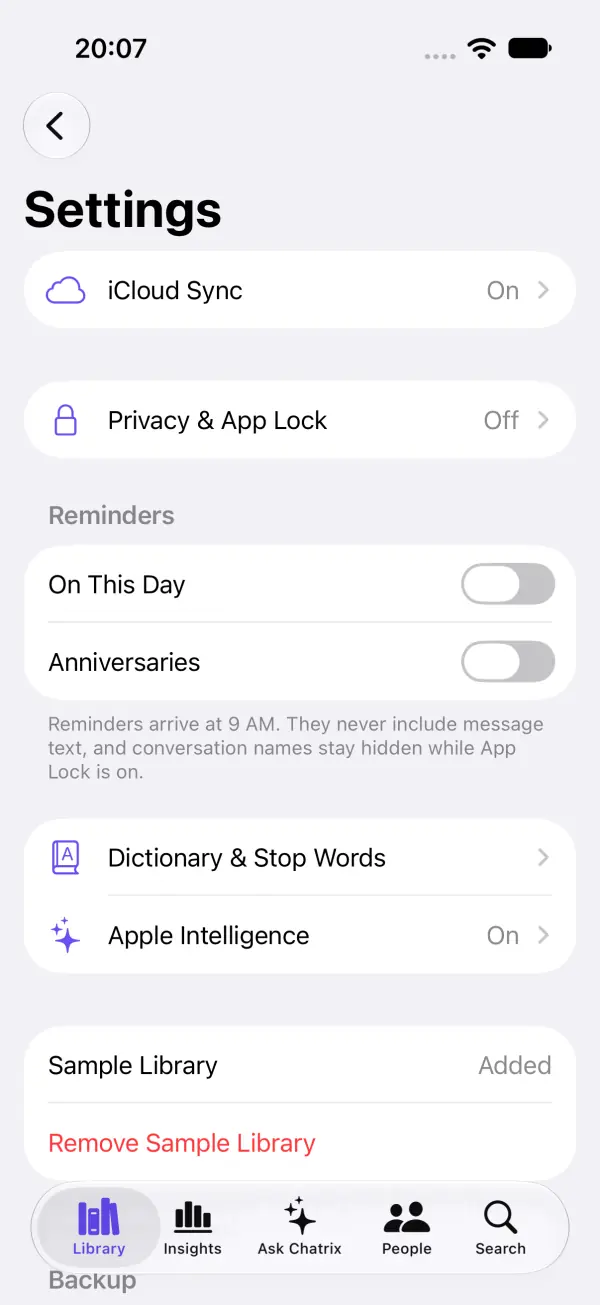
- iPhone: In "Library", select "Settings" (the gear icon) in the top-left corner.
- iPad: In "Library", select "Settings" (the gear icon). Settings opens in the list column.
- Mac: Choose "Settings…" from the "Chatrix" menu in the menu bar, or press ⌘,. Settings opens in a separate window; when Chatrix is locked by App Lock, the Settings window is locked too, and you need to unlock it first.
Each item in Settings opens on a new page. Go back to the previous page to return to Settings.
Settings items
| Item | What it does | More details |
|---|---|---|
| "iCloud Sync" | Syncs your chat library across iPhone, iPad and Mac. "On" or "Off" appears on the right. | iCloud Sync |
| "Privacy & App Lock" | Locks Chatrix with Face ID, Touch ID, Optic ID or your passcode, shows conversation names in Spotlight, and shows the ad tracking status on iPhone and iPad. "Delete All Data" (iPhone, iPad) is at the bottom. The unlock method or "Off" appears on the right. | Privacy & App Lock |
| "Reminders" | Two switches: "On This Day" and "Anniversaries". | Reminders and Widgets |
| "Dictionary & Stop Words" | Custom words, stop words and hidden words for the Lexicon. | Dictionary and Stop Words |
| "Apple Intelligence" | Makes summaries with Apple Intelligence on this device: the status, background summarizing, the number of summaries made, and "Delete All Summaries…". "On", "Off", "Getting Ready" or "Not Available" appears on the right. | Apple Intelligence |
| "Sample Library" | "Added" or "Not Added" appears on the right, with "Add Sample Library" or "Remove Sample Library" below. It can't be added when you already have your own chats. | Sample library |
| "Backup" | "Save Backup…" and "Restore from Backup…". | Backup |
| "Device-to-Device Transfer" (iPhone, iPad) | "Move your library directly to your other iPhone or iPad over Wi-Fi." | Device-to-Device Transfer |
| "Remove Ads" | A one-time purchase that removes ads on all your devices. The price appears on the right, or "Purchased" after you've bought it. | Remove Ads |
| "Ad Privacy Options" (iPhone, iPad) | Appears only in regions where consent is required, and opens the ad consent form. It doesn't appear after you've bought "Remove Ads". | Ad Privacy Options |
| "YUCTS Suggestions" (Mac) | The YUCTS Suggestions card in Insights, and the list of suggestions. It doesn't appear after you've bought "Remove Ads". | YUCTS Suggestions |
| "User Guide" | Lists the pages of this user guide by topic ("Basics", "Insights & AI", "Sync & Backup" and "Other Topics"). On iPhone and iPad, selecting one opens that page in the app: "Pages show the latest version from docs.yucts.com." To use your browser instead, select "Open in Browser" in the top-right corner. On Mac, pages open in your browser. "User Guide" at the top opens the guide's home page. | The user guide doesn't load in the app |
| "About Chatrix" | The version appears on the right. See "About Chatrix" below. | — |
Errors in a settings item (for example, if adding the sample library fails) appear in red in that section's description.
Remove Ads
Every feature in Chatrix is free. Go to "Settings" and select "Remove Ads":
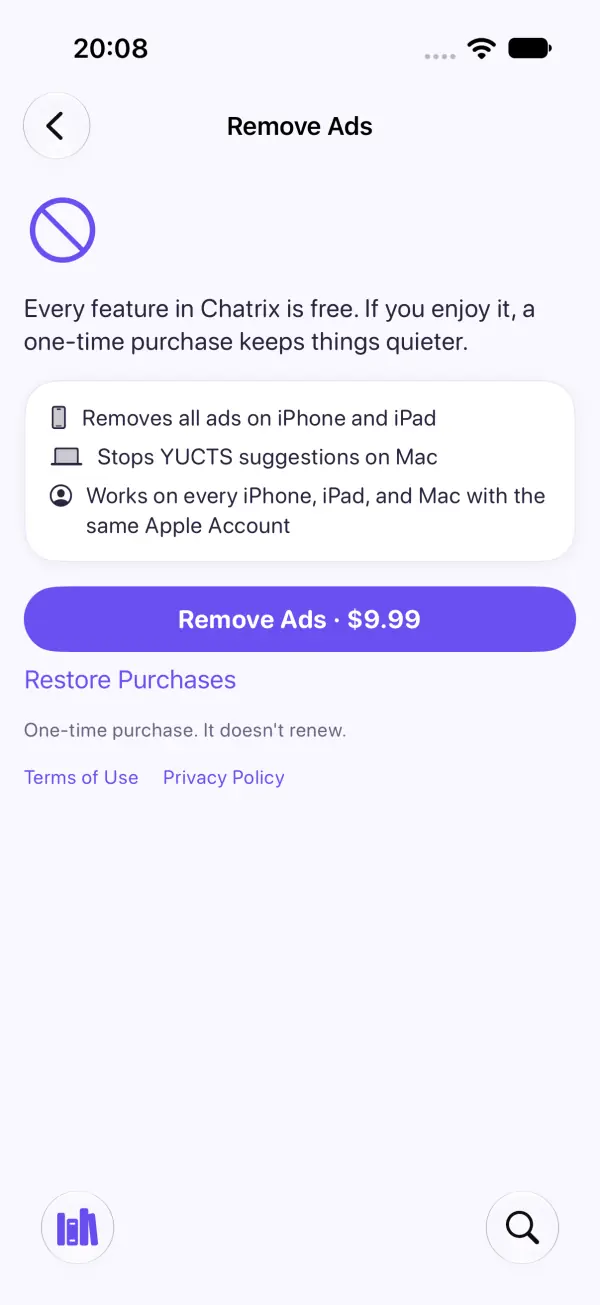
- "Every feature in Chatrix is free. If you enjoy it, a one-time purchase keeps things quieter."
- What you get: "Removes all ads on iPhone and iPad" and "Stops YUCTS suggestions on Mac", and it "Works on every iPhone, iPad, and Mac with the same Apple Account".
- "One-time purchase. It doesn't renew." Links to "Terms of Use" and "Privacy Policy" are at the bottom of the page.
- Select "Remove Ads · …" (the button shows the price).
- Complete the purchase on the App Store confirmation screen.
- When it's done, "Ads are removed on all your devices. Thank you!" appears, and "Purchased" appears to the right of "Remove Ads" in "Settings".
- If the purchase needs a parent's approval, "Waiting for approval. Ads are removed as soon as the purchase is approved." appears.
- If the App Store can't be reached, the button can't be selected, and "The App Store isn't available right now. Try again later." appears.
- If something goes wrong, an error code appears on the page. See "Error codes".
For where ads appear and how tracking works, see "Ads and tracking".
Restoring purchases
If you bought it on another device with the same Apple Account, Chatrix usually recognizes the purchase automatically. If you got a new device, reinstalled Chatrix, or "Purchased" doesn't appear:
- Go to "Settings" › "Remove Ads".
- Select "Restore Purchases". You may need to sign in with your Apple Account.
Once it's confirmed, "Purchased" appears to the right of "Remove Ads".
YUCTS Suggestions (Mac)
The Mac version doesn't have ads; Insights shows suggestions for other YUCTS apps instead. See "Mac: YUCTS Suggestions". On Mac, go to "Settings" › "YUCTS Suggestions":
- "Show YUCTS Suggestions": on by default. "Shows other YUCTS apps in Insights and Settings." When it's off, suggestions no longer appear in Insights or on this page.
- The current suggestions are listed below; select "View in App Store" or "Learn More" to open one. When there are no suggestions, "No suggestions right now." appears.
- "Suggestions are downloaded from chatrix.yucts.com without sending any identifying information. They no longer appear after you buy Remove Ads."
- This setting is stored only on this Mac. After you buy "Remove Ads", this item no longer appears in Settings.
About Chatrix
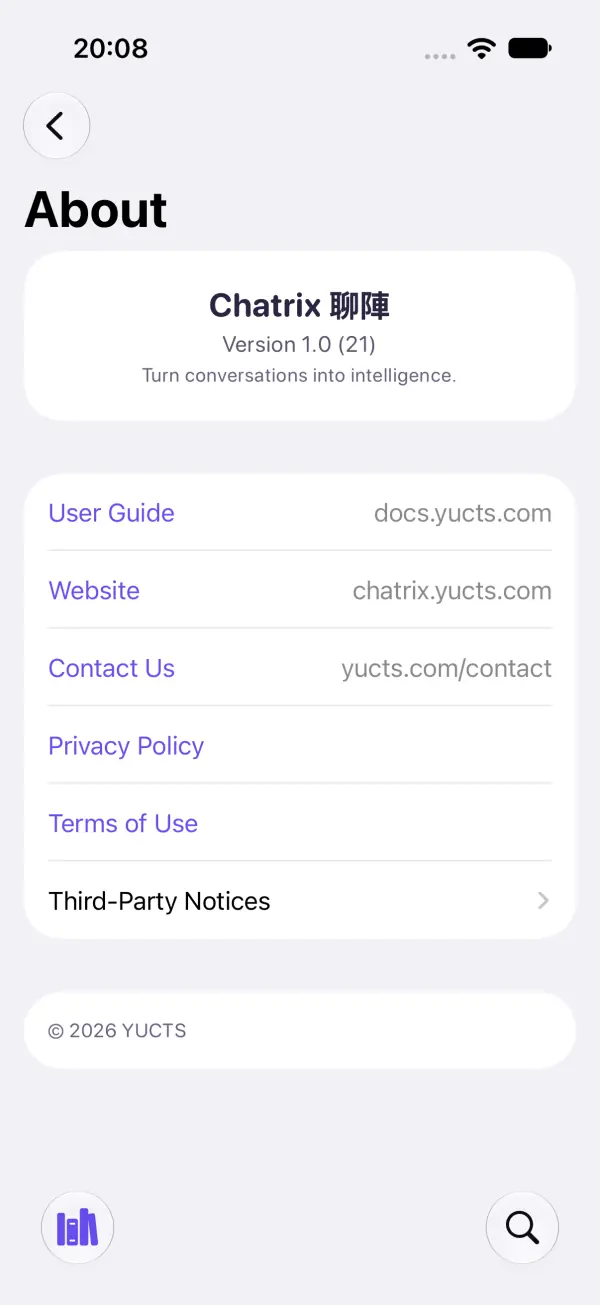
Go to "Settings" › "About Chatrix":
- The app's name and version ("Version …") are at the top. When you report a problem, please include the version.
- "User Guide": on iPhone and iPad, opens the user guide list described above; on Mac, opens this user guide in your browser.
- "Website": the Chatrix website.
- "Contact Us": opens the YUCTS contact form.
- "Report a Bug" (iPhone, iPad): shows forum.yucts.com on the right and opens the bug reports board on the YUCTS Forum. No data is sent automatically. Forum posts are public, so don't include personal information or chat content.
- "Privacy Policy" and "Terms of Use".
- "Third-Party Notices": the open source components Chatrix uses and the full text of their licenses.
The user guide, privacy policy and terms of use open in the version that matches Chatrix's language. In the Mac version (1.0), the privacy policy and terms of use open in Japanese when Chatrix is in Japanese and in Traditional Chinese when it's in Chinese; in other languages, they open in English.