Device-to-Device Transfer
"Device-to-Device Transfer" copies your whole chat library (all your chats, photos and files, including conversation avatars) directly to your other iPhone or iPad. The data is sent directly between the two devices over Wi-Fi, encrypted the whole way, without going through any server and without needing iCloud.
- The chat library on the old device (the one sending) doesn't change at all.
- A transfer isn't a merge: the new device (the one receiving) must not have any chats yet.
Before you start
- Open Chatrix's transfer page on both devices, and keep them near each other. Keep Chatrix open on both until the transfer is complete.
- Turn on Wi-Fi on both devices, ideally connected to the same network; Apple devices can also connect directly with peer-to-peer Wi-Fi.
- The new device doesn't have any chats yet. Having only the sample library is fine; the sample is removed automatically when the transfer is complete.
- The old device needs a working camera to scan the pattern on the new device.
- Transfers work only between iPhone and iPad. Mac doesn't have device-to-device transfer. See "Mac".
- Both devices need enough free space: the old device first prepares the chat library as one encrypted temporary file, and the new device needs room for that file and the chat library once it's set up. If there isn't enough space, the screen tells you which device needs how much.
- Update Chatrix to the latest version on both devices. If the two devices have different versions of Chatrix, they can't transfer to each other.
- The first time you transfer, the system asks whether to allow Chatrix to use the local network (on both devices) and the camera (on the old device). Allow them so the transfer can go ahead. See "Allowing local network access" below.
Allowing local network access
Chatrix sends data directly between the two devices over the local network. The first time you transfer, each device asks once whether to allow Chatrix to find devices on the local network:
- The new device: when you open the receiving page and it starts waiting for a connection.
- The old device: when you scan the pattern and it starts connecting.
The prompt says "Chatrix uses your local network to transfer your library directly between your devices." Choose to allow it.
If you declined by mistake, turn on the permission on that device, then reopen the transfer page:
Go to Settings › Privacy & Security › Local Network and turn on Chatrix.
If you don't allow it, the new device shows "Chatrix couldn't wait for the other device." and the old device shows "Couldn't find the other device." See "If the transfer doesn't finish".
Opening the transfer page
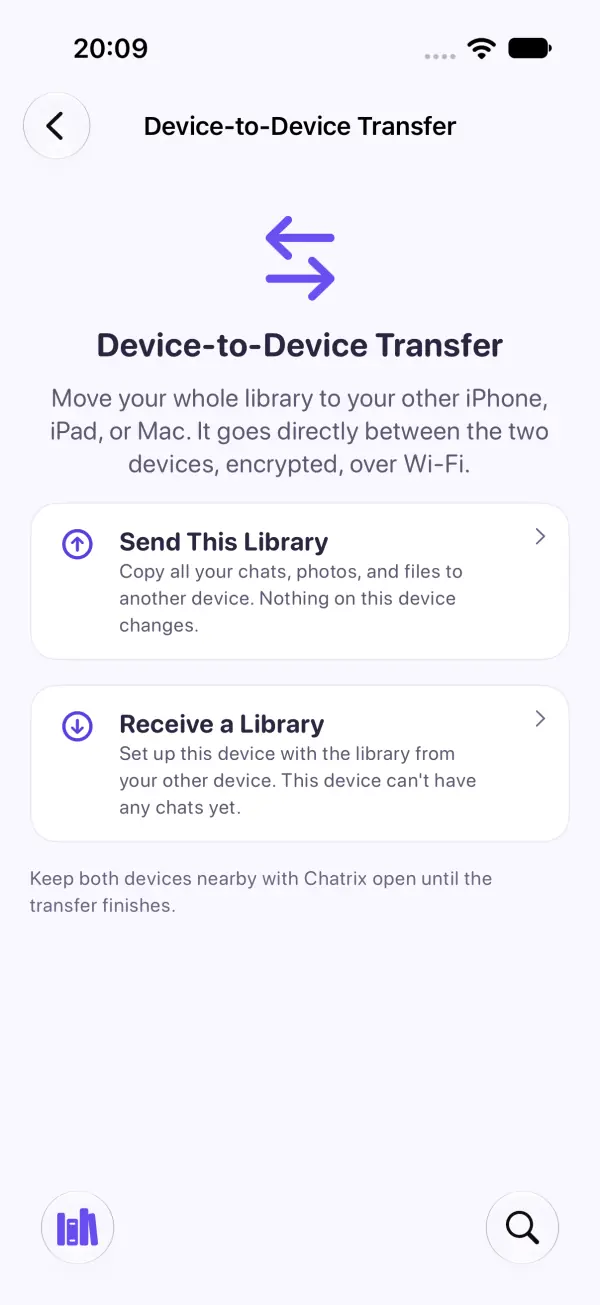
Go to "Settings" › "Device-to-Device Transfer" (for how to open Settings on each device, see "Settings and About"). The transfer page has two options:
| Option | Description |
|---|---|
| "Send This Library" | "Copy all your chats, photos, and files to another device. Nothing on this device changes." Use it on the old device. See "Sending from the old device". |
| "Receive a Library" | "Set up this device with the library from your other device. This device can't have any chats yet." Use it on the new device. See "Receiving on the new device". |
When you open Chatrix on the new device for the first time, you can also select "Transfer from Another Device" in "Where would you like to start?" on the last welcome page to open the receiving page directly. See "Getting Started".
Receiving on the new device
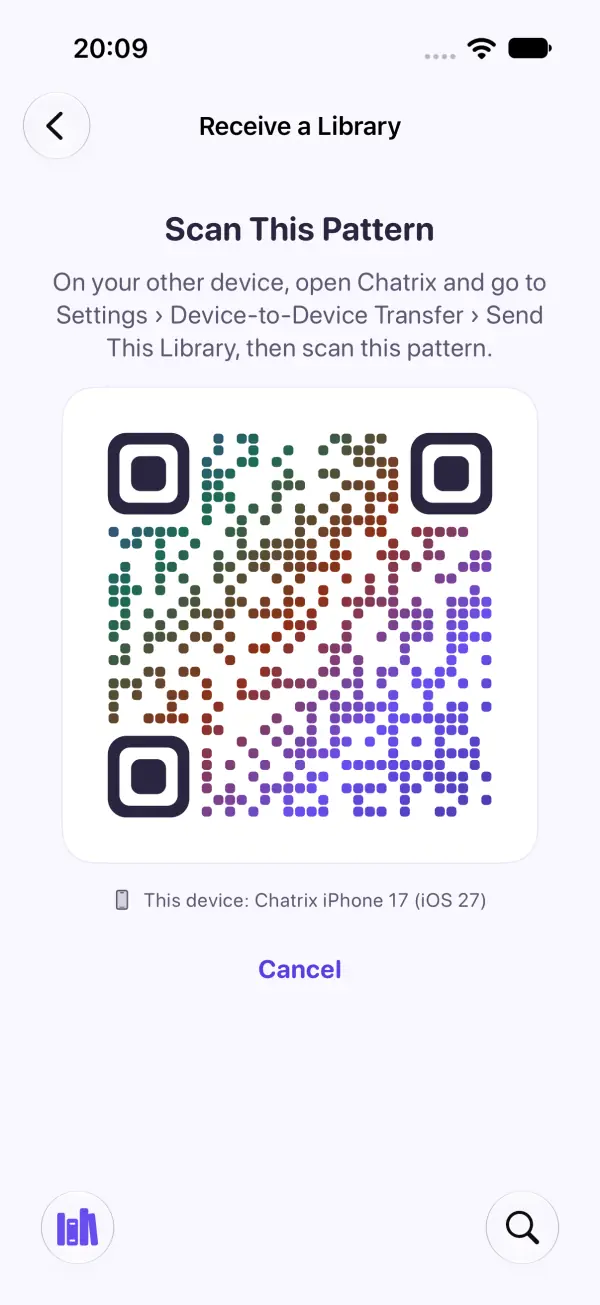
- On the new device, go to "Settings" › "Device-to-Device Transfer" and select "Receive a Library", or select "Transfer from Another Device" on the last welcome page.
- "Scan This Pattern" appears with a slowly flowing, colorful pattern, and "This device: …" below it. Keep this screen open, then scan the pattern on the old device.
- After the old device scans it, "Connected to “…”" and "Confirm on the other device to start." appear.
- After you confirm on the old device, "“…” Is Preparing the Library…" and then "Receiving from “…”…" appear, with the progress.
- When everything has been received, "Checking the Data…" appears, followed by "Setting Up Your Library…". You can't go back at this point.
- When it's done, "Transfer Complete" appears: "Your library from “…” is ready." This device's chat library is now the one it received, and your conversations appear in "Library".
- A new pattern is created each time you open the receiving page. The pattern appears only on the screen and contains a key just for this transfer, which is used for encryption and lets the two devices verify each other.
- The new device only receives a chat library from the first device that connects. If another device scans the same pattern, it shows "The Other Device Is Busy". See "If the transfer doesn't finish".
- Until checking starts, select "Cancel" or go back to the previous page to cancel.
- If the device has only the sample library, Chatrix removes the sample automatically when the transfer is complete.
- If the transfer doesn't finish, what was on this device doesn't change.
Sending from the old device
- On the old device, go to "Settings" › "Device-to-Device Transfer" and select "Send This Library". If App Lock is on, you first verify with Face ID, Touch ID, Optic ID or your passcode.
- "Scan the Pattern" appears with the camera view. Point the camera at the pattern on the new device.
- "Connecting…" appears. Once connected, you're asked "Send your library to “…”?", with the number of "Chats" and "Messages".
- After you make sure it's your new device, select "Send". If you don't want to send, select "Cancel".
- "Preparing Your Library…" and then "Sending to “…”…" appear, showing how much has been sent out of the total size. You can't go back at this point; to stop, select "Cancel".
- When everything has been sent, "Waiting for “…”…" appears: "The other device is checking the data and setting up the library."
- When it's done, "Transfer Complete" appears: "“…” now has your library. Nothing on this device has changed." Select "Done".
- Scan the pattern with "Send This Library" in Chatrix. Scanning it with the system's Camera app doesn't start a transfer.
- If Chatrix isn't allowed to use the camera, "Camera Access Needed" appears. Select "Open Settings", allow Chatrix to use the camera, then come back.
- While a transfer is in progress, iPhone and iPad don't lock the screen automatically.
If the connection drops briefly
- If the connection drops while sending, the old device shows "Connection Lost": "Reconnecting to “…”. Keep both devices nearby with Chatrix open." The new device shows "Waiting for “…” to reconnect. Keep both devices nearby."
- Once reconnected, sending picks up where it left off, so you don't have to start over. If the connection is lost for too long (about 2 minutes), the transfer stops.
- If either device leaves the transfer page or quits Chatrix, this transfer ends. You then need to reopen the receiving page on the new device and scan again from the start.
Mac
Mac doesn't have device-to-device transfer; transfers work only between iPhone and iPad. To move your chat library to or from a Mac, use one of these instead:
- iCloud sync: turn on sync on both devices, and your chat library appears on the other device through your own iCloud.
- Backup: save a backup on one device, put the backup file somewhere the other device can get to (such as iCloud Drive or an external drive), then restore from the backup on the other device.
If the transfer doesn't finish
If the transfer doesn't finish, the page explains why. The title is usually "The Transfer Didn't Finish", or "Not Enough Space" when there isn't enough space. After you fix the problem, select "Try Again": the new device shows a new pattern, and the old device goes back to the scanning screen.
| Message on the screen | Reason and what to do |
|---|---|
| "Couldn't find the other device." | The old device can't find the new device; for example, the two devices aren't near each other, Wi-Fi is off, or the new device has left the receiving page. Keep both devices on the transfer page and allow Chatrix to use the local network. See "Allowing local network access". |
| "Chatrix couldn't wait for the other device." | The new device can't wait for a connection on the local network. Make sure Wi-Fi is on and allow Chatrix to use the local network. See "Allowing local network access". |
| "This pattern didn't work." | The pattern scanned isn't the one the new device is showing now; for example, the receiving page was reopened on the new device. Scan the pattern currently on the new device's screen. If the new device has an older version of Chatrix, this message may also be the only one that appears; in that case, the new device's screen doesn't change. Update both devices to the latest version first, then try again. |
| "The two devices have different versions of Chatrix." | "The two devices have different versions of Chatrix. Update Chatrix on both devices, then try again." If the two devices have different versions of Chatrix, the transfer can't happen, and the old device shows this message. Update both devices to the latest version, then try again. |
| "The Other Device Is Busy" | "The other device is already receiving a library from another device. To start over, choose Receive a Library again on the other device." Another device has already scanned the same pattern and connected, and the new device receives a chat library from only one device at a time. To send from this device instead, go back to the previous page on the new device, select "Receive a Library" again, and scan the new pattern. |
| "The connection was lost." | The connection dropped and never came back. Keep both devices close together with Chatrix open, and try again. |
| "This Device Already Has Chats" or "The Other Device Already Has Chats" | "A library can only be transferred to a device without any chats." Combining two chat libraries isn't available yet. |
| "This device needs … of free space to receive the library." | The new device (this one) doesn't have enough free space. Free up the amount shown on the screen and try again. |
| "The other device needs … of free space." | The new device doesn't have enough free space. Free up the amount shown on the screen on the new device and try again. |
| "This device needs … of free space to prepare the transfer." | The old device (this one) doesn't have enough free space to prepare the data. Free up the amount shown on the screen and try again. |
| "The transfer was canceled on the other device." | "Cancel" was selected on the other device, or it left the transfer page. |
| "The data didn't arrive intact. Try again." | The data received is different from what was sent, so the new device won't use it. Try again. |
| "The library couldn't be set up. Error code: …" or "The other device couldn't set up the library. Error code: …" | An error occurred while the new device was setting up the chat library. See "Error codes". |
| "Something went wrong during the transfer. Try again." | Reopen the transfer page on both devices and try again. |
If the transfer keeps failing, you can move your chat library with a backup instead, or tell us the message on the screen through the YUCTS contact form.
After the transfer
- iCloud sync is off on the new device. To sync, go to "Settings" › "iCloud Sync" and turn it on; it works the same as after restoring from a backup. See "iCloud sync after restoring".
- Settings such as App Lock, reminders and showing conversation names in Spotlight are stored separately on each device, so set them up again on the new device. See "Privacy & App Lock" and "Reminders and Widgets".
- The chat library on the old device stays as it is.